Find your way around
The parts of the app that are the same on every page: the sidebar, the organization menu, the menu of your picture, and the notices at the top.
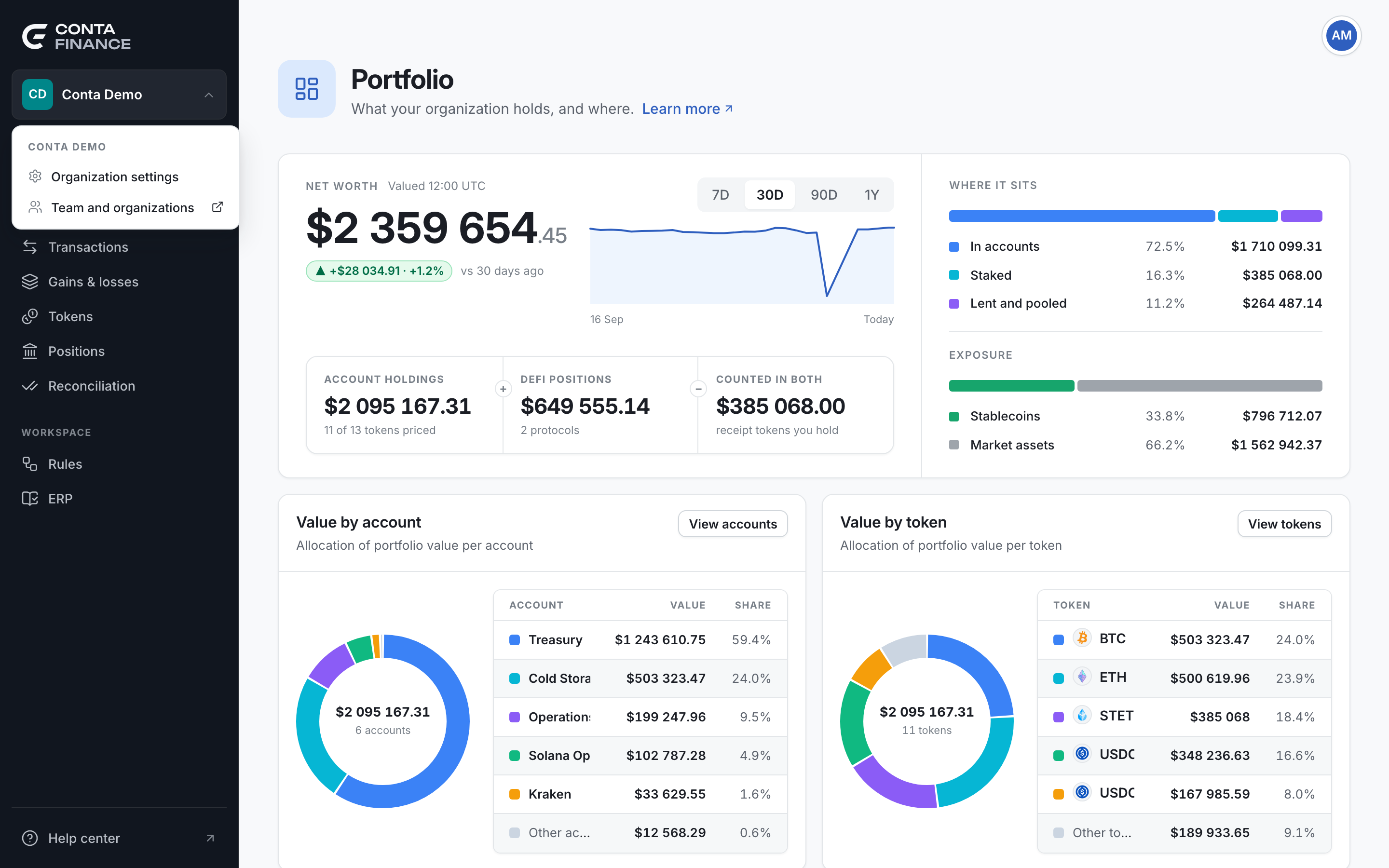
Every page of an organizationOne company with its own books, its own data and its own address. sits in the same frame. The sidebar is on the left. Your picture is at the top right. Notices show at the top of the page when there is something to tell you.
The sidebar
The sidebar groups the pages in three parts.
| Group | Page | What it holds |
|---|---|---|
| Accounting | Portfolio | What the organization holds, and what it is worth. See The Portfolio page. |
| Accounts | Your accounts, your contacts and the addresses you have not named yet. See The Accounts page. | |
| Transactions | The ledger. See The Transactions page. | |
| Gains & losses | What each asset cost, and the realized and unrealized gains. See The Gains & losses page. | |
| Tokens | Every token of your activity, and its price. See The Tokens page. | |
| Positions | Your DeFi positions. See The Positions page. | |
| Reconciliation | Your books against the balances on each platform. See The Reconciliation page. | |
| Workspace | Rules | The rules that classify movements. See The Rules page. |
| ERP | The connection to your accounting system. See The ERP page. | |
| ContaGPT | Questions about your books in plain words. See Ask ContaGPT. |
ContaGPT shows only when it is turned on for your organization.
A dot on ContaGPT means it is answering, or that an answer is ready and you have not read it.
Help center, at the bottom of the sidebar, opens this help center in a new tab.
The organization menu
Select the name of the organization at the top of the sidebar.
| Item | What it does |
|---|---|
| Organization settings | Opens the accounting preferences. See Organization settings. |
| Switch organization | Lists the other organizations you can open, with your access to each one. It shows only when you can open more than one. |
| Team and organizations | Opens the page of your team at accounts.conta.finance, in a new tab. People and access are managed there. See Roles and access levels. |
The menu of your picture
Select your picture at the top right. The top of the menu shows your name, your email address and your access to this organization. If you reach the organization through another team, such as an accounting firm, the name of that team shows too.
| Item | What it does |
|---|---|
| Personal settings | Opens your account at accounts.conta.finance in a new tab: your name, your photo, how you sign in, two-factor authentication and your sessionsThe sign-in of one browser. It ends after 12 hours with no use, or 30 days after the sign-in.. |
| Sign out of and the organization | Signs you out of this organization only. See Sessions and signing out. |
The notices at the top of the page
Two notices can show above the page. They show on every page until there is no reason for them.
- The read-only banner. It says "You have read-only access to this organization." You can read everything, but you cannot change anything. See Read only access.
- The task notice. It says that a taskWork that takes minutes, such as reading the history of a new account. A notice at the top of every page follows it. runs in the background, such as an import, and then that it finished or failed. See Background tasks.
Learn more links
Many pages and some windows end their first explanation with Learn more. It opens the help center article about that screen, in a new tab, so the page stays as it is.