The Rules page
The tabs, figures, filters and rows of the Rules page, and what each number on a rule means.
Where to find it:your-organization.conta.financeRules
The Rules page lists every ruleA set of conditions that gives each matching movement a category, a subcategory or a rollup automatically. of the organization in the order Conta Finance runs them. The first rule that matches a movementOne asset going into or out of one of your accounts. A transaction has one movement per account and asset. wins, and no other rule is evaluated for it. To learn the order, see How classification works.
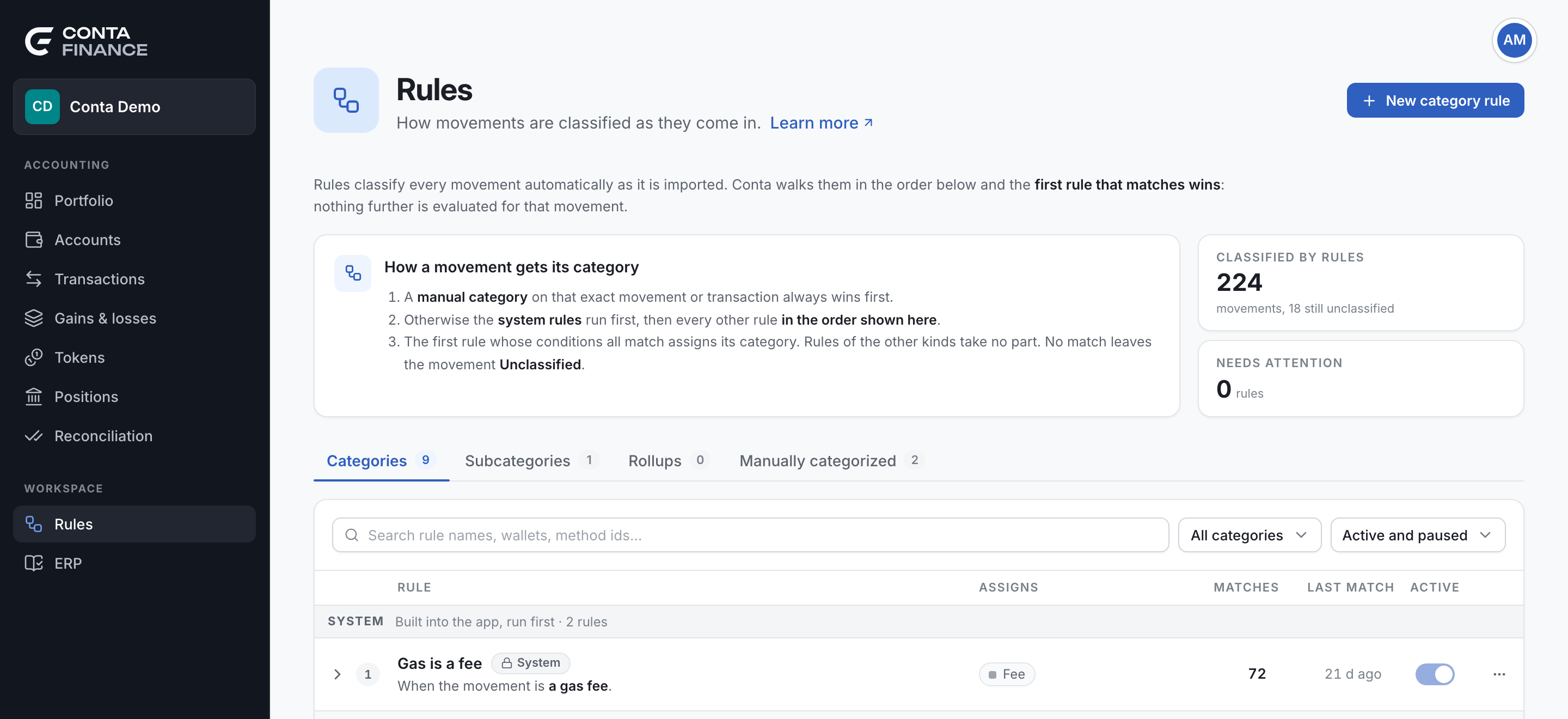
The tabs
| Tab | What it lists |
|---|---|
| Categories | The rules that give a movement its categoryThe accounting label of a movement, such as Purchase or Fee. Cost basis reads it.. |
| Subcategories | The rules that give a subcategoryA second, free label for your own analysis. It changes no figure.. See Subcategory rules. |
| Rollups | The rules that group many movements into one row. See Rollups. |
| Manually categorized | The movements somebody categorized by hand. |
The number on each tab counts its rules. Each kind of rule runs on its own, so each tab numbers its rules from 1.
The button in the header creates a rule of the open tab: New category rule, New subcategory rule or New rollup. On Manually categorized, it creates a category rule. See Create a rule.
The explainer card
The card at the top says, in three or four steps, how the rules of the open tab decide. Its title follows the tab: How a movement gets its category, How a movement gets its subcategory or How movements get grouped.
The tiles
| Tile | What it shows |
|---|---|
| Classified by rules | How many movements the category rules classify. On this tab it also says how many are still unclassified. |
| Labelled by rules | On the Subcategories tab: how many movements get a subcategory from a rule. |
| Grouped by rules | On the Rollups tab: how many movements are in a rollup. |
| Needs attention | How many rules of the tab have a problem. Select Review to show only those. Select Clear filter to show every rule again. |
Filters
The toolbar above the list:
- Search finds a rule by its name, the label it assigns, or what its conditions name: an account, an asset, a method IDThe code of the contract function a transaction called. Rules and rollups can match on it..
- The label filter reads All categories, All subcategories or All rollups, after the tab.
- Active and paused limits the list to Active or Paused rules.
A filter hides rows. It never changes the order in which the rules run.
The order of the list
Each tab is one list, always in the order the rules run. The first rule that matches a movement wins. The list has two groups:
- System: the rules built into the app. They run first. There are two, both on the Categories tab: "Gas is a fee" gives every gas movement the category Fee, and "Internal transfers" gives a transfer from one monitored wallet to another the category Internal transfer. See How classification works.
- Rules: every other rule, in the order shown. Its note reads Then, in this order. Drag a rule to change it.
A System rule shows the System chip with a lock. You cannot edit, pause, delete or move it, and no rule can go above it. You can duplicate it.
Move a rule
A new rule runs last. To change where a rule runs, you need Read and edit access. Then do one of these:
- Hold the pointer on the row. A grip shows at its left. Drag the row by the grip and drop it above or below another rule. The rest of the row does not drag, so you can select its text.
- Open the Rule actions menu at the end of its row and select Move to the top or Move to the bottom.
The rule first shows in its new place on the page only. Nothing is saved yet. A window opens. Its title names the rule and its new place, for example: Move "Payroll" to #3? The window says what the move changes:
- Some movements change category. For example: "12 movements will change category. The Ledger and reports show it as soon as you apply." The Category changes list shows each change, for example Payment → Purchase.
- No movement changes category. Only the rule that classifies them changes. The Which rule classifies them list shows how, for example "Payroll" will classify 2 more movements (0 now, 2 after).
- Nothing changes. Every movement keeps the rule that classifies it today.
Select Apply to save the move. Conta Finance classifies your history again, and Rule moved. shows.
To cancel, select Undo, press Esc or close the window. The rule goes back to its place, and nothing is saved. Only one move can wait at a time.
The row
| Column | What it shows |
|---|---|
| The number | The place of the rule in the order of evaluation. Its tooltip says it in words, for example "Evaluated 3rd". |
| Rule | The name, and under it the conditions as a sentence, for example "When the movement comes from Treasury and moves USDC." A rollup reads "When a transaction…". A rule built into the app shows the System chip. |
| Assigns | The category or subcategory the rule gives. For a rollup: its name and its window, for example By month. |
| Matches | How many movements the rule classifies today. A movement that an earlier rule takes does not count. |
| Last match | How long ago the rule last classified a movement, for example "2 h ago", or "Never". |
| Active | The switch that pauses the rule or resumes it. |
| The menu | Rule actions: Edit rule, Move to the top, Move to the bottom, Duplicate and Delete rule. See Pause, edit and delete rules. |
Rules that need attention
When a rule has a problem, a chip shows after its name, and the sentence under the name says what to do.
| Chip | Meaning |
|---|---|
| Paused | The rule is turned off, so it classifies nothing. |
| Shadowed by a rule | The rule matches movements, but an earlier rule takes every one of them. The chip names that rule and its number. |
| Never matches | No movement in your history satisfies the conditions. |
The expanded row
Select a row to expand it. You can open many rows at once.
- The sentence. The whole rule in words, with Edit and Duplicate beside it.
- Movements classified: how many movements the rule classifies, and since when.
- Last match: when it last classified one, in UTC.
- Share of category: the part of all the movements of its category that this rule classifies. Only category rules show it.
- Conflicts: how many movements the conditions match but an earlier rule takes first, and which rule. None means no rule takes its movements. Some overlap is normal: the first match wins.
- Where its matches go: shown when an earlier rule or a manual category takes some of the movements the conditions match. The line on top says how many movements match the conditions. The bar under it splits them: the blue part is what this rule classifies, the hatched part is what an earlier rule or a manual category already classifies. Under the bar, the rule that takes the most is named.
- Conditions: the conditions, group by group.
- The movements. The movements this rule classifies, in how many transactions, and the most recent ones. The ones an earlier rule or a manual category takes are not listed. On a paused rule, which classifies nothing, the list shows every movement the conditions match.
See what it classifies in the Ledger opens Transactions with only the transactions this rule classifies today. Transactions counts transactions, not movements, so its number can be smaller.
Unclassified movements
Under the Categories list, a note counts the movements no rule matches. Select its link, for example Review 12 unclassified movements, to open them in Transactions. The note also says how many transactions they make there.
The Manually categorized tab
This tab lists each movement somebody categorized by hand on the Transactions page. A manual category always wins: no rule can change it. See Categorize movements.
| Column | What it shows |
|---|---|
| Date | The day and time of the movement, in UTC. |
| Amount | The token amount. An amount in is positive, an amount out is negative. |
| From and To | The two sides of the movement. |
| Transaction | The hash. |
| Type | How the movement was produced, such as erc20. |
| Category | The category set by hand. No category means somebody took the category off this movement. |
| Actions | Open the transaction in Transactions, or remove the manual category. |
When you select Remove the manual category, the movement goes back to the rules at once. Nothing asks you to confirm.
Review them in Transactions opens the ledger filtered to the movements categorized by hand, where you can change many at once.