Create a rule
Write a rule that gives a category to every movement that matches it, in your history and in every new import.
Where to find it:your-organization.conta.financeRules
A rule gives a categoryThe accounting label of a movement, such as Purchase or Fee. Cost basis reads it. to each movementOne asset going into or out of one of your accounts. A transaction has one movement per account and asset. that matches its conditions. It applies to your existing history and to every new import. To learn which rule wins when two rules match, see How classification works.
The Rules page
Open Rules in the sidebar. The page has four tabs:
| Tab | What it lists |
|---|---|
| Categories | The rules that give a movement its category. Cost basis reads this label. |
| Subcategories | The rules that give a subcategoryA second, free label for your own analysis. It changes no figure., a second label that changes no figure. |
| Rollups | The rules that show many transactions as one row. |
| Manually categorized | The movements you categorized by hand. No rule can change them. |
Each tab lists its rules in the order they run. The System rules, built into the app, run first. Your rules follow under Rules. The number on each rule is its place in the order of evaluation.
Create a category rule
- On the Categories tab, select New category rule.
- In Rule name, type a name that says what the rule catches.
- In Category it assigns, pick a category, or type a new name and select Create.
- Under Conditions, add one or more conditions.
- Read the preview, then select Create rule.
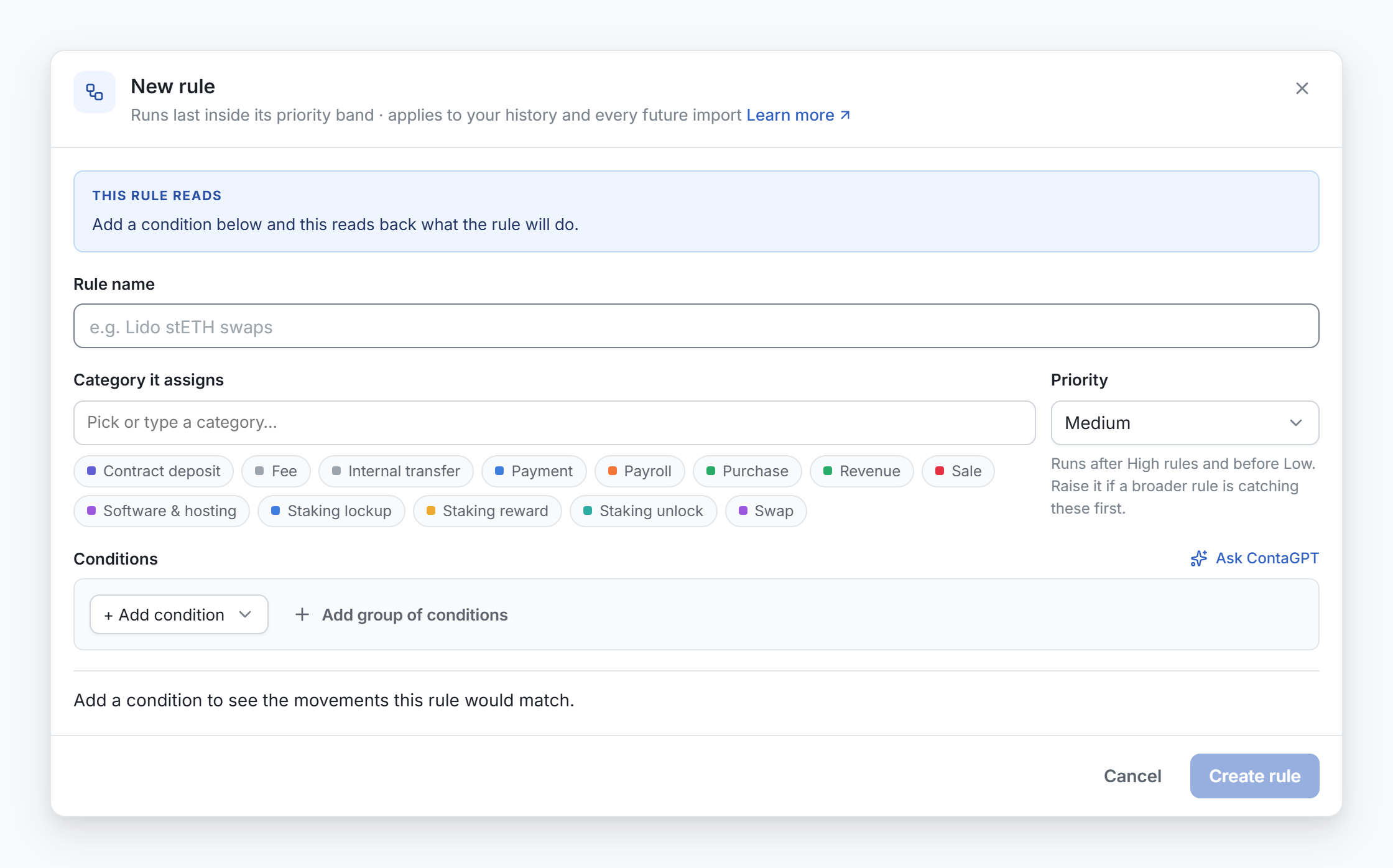
At the top, This rule reads writes the rule as a sentence, for example "When the movement comes from Treasury and moves USDC, categorize it as Payroll." Read it before you save.
Where the rule runs
A new rule runs last, after every other rule of its tab. Any earlier rule that matches a movement wins first.
To make it run earlier, move it on the Rules page. Drag its row above or below another rule, or use Move to the top or Move to the bottom in its Rule actions menu. A window shows what the move changes. Select Apply to save it. Put a narrow rule above the broad ones. See The Rules page.
Conditions
A group of conditions starts with one sentence: "When the movement meets all of these conditions". With all of, every condition in the group must be true, and the word AND shows between the rows. Select any of in the sentence when one condition is enough: the word between the rows changes to OR. Select Add group of conditions to put a group inside the main one, for example "from Treasury AND (USDC OR USDT)". The inner group is a box with its own sentence and its own buttons to add a condition or remove it. It sits indented inside the main group, with its rows on a line of their own.
If you are not sure how to write the conditions, select Ask ContaGPT next to the Conditions title. ContaGPT opens in a new tab, with a new chat. Its box already holds the start of the request, and what the form says when the form has conditions and a category. Finish the request in your own words and send it. ContaGPT prepares the rule for you to confirm. The link shows only in a category rule, and only where ContaGPT is available. See Confirm a ContaGPT proposal.
Select + Add condition to add one of these:
| Condition | What it matches |
|---|---|
| Wallet | One of your accounts, on the side you choose: From, To or From or To. The list also offers Any monitored wallet and Any untracked wallet. |
| Address | One address that you type, on any platform. |
| Contact | A saved contactAn address you named that belongs to someone else, such as a supplier.. |
| Method ID | The contract function the transaction called. |
| Type | How the movement was produced, such as erc20, gas or reward. |
| Asset | The token of the movement. |
| Tag | Any account that carries this tag. |
| Platform | The blockchain or exchange of the movement. |
The preview
Under the conditions, the form shows how many movements match, and the newest ones with the category they have today. It updates while you edit. It counts every match, also the movements that an earlier rule takes first.
Check what a rule classifies
Select a rule to open its detail. It shows Movements matched, Last match, Share of category and Conflicts: how many movements an earlier rule claims first, and which rule.
Select See what it classifies in the Ledger to open Transactions with only the transactions this rule classifies today. Transactions groups movements, so its count can be smaller.
Change, copy, pause or delete a rule
Open the Rule actions menu at the end of the row:
- Edit rule opens the form. Select Save changes to apply the change to your whole history.
- Move to the top and Move to the bottom change where the rule runs. See The Rules page.
- Duplicate opens a new rule with the same conditions, named for example "Swap 2". The copy runs last.
- Delete rule asks you to confirm. The movements it classifies fall back to the next rule that matches them.
To pause a rule, turn off its switch in the Active column, then select Pause rule. A paused rule classifies nothing. Its movements go to the next rule that matches them, or to Unclassified. Turn the switch on again to bring them back.
Fix a rule that needs attention
The Needs attention tile counts the rules with a problem. Select Review to show only those.
- Shadowed by a rule: an earlier rule claims every movement this one targets. Delete it, make it more specific, or move it above that rule.
- Never matches: no movement in your history satisfies its conditions. Check the account, the method IDThe code of the contract function a transaction called. Rules and rollups can match on it. or the asset.
- Paused: the rule is turned off.
Subcategory rules and rollups
New subcategory rule opens the same form, with Subcategory it assigns. Use it to split a category for your own analysis, for example gas by purpose. It competes only with other subcategory rules.
New rollup groups the transactions that call the same method into one row per window, for example By month. Use it for many small, repeated transactions. It changes how Transactions shows them and what goes to the ERP. Cost basis keeps every movement separate.