Categorize movements
Select movements and give them a category, a subcategory, a review mark or a note, or decide what a potential bridge was.
Where to find it:your-organization.conta.financeTransactions
A categoryThe accounting label of a movement, such as Purchase or Fee. Cost basis reads it. belongs to a movementOne asset going into or out of one of your accounts. A transaction has one movement per account and asset., not to a transaction. Cost basis and the ERP read it. Rules give most movements their category. Categorize by hand when a rule does not fit, or when you want to correct one movement.
Select movements
- Open Transactions in the sidebar.
- Tick the checkbox of a row to select every movement of that transaction.
- To select one movement alone, expand the row and tick the checkbox of that movement.
- To select every movement on the page, tick the checkbox in the header of the table.
A bar opens at the bottom of the screen. It says how many movements you selected, for example 3 movements selected. To clear the selection, select the cross at its right end.
Gas cannot be selected
A gas movement has no checkbox you can tick. Gas is always categorized as Fee. This keeps every fee you pay in your books. For the same reason, a row that holds only gas cannot be selected. See Transactions and movements.
Categorize
- Select the movements.
- In the selection bar, select Categorize.
- Stay on the Category tab, or open the Subcategory tab.
- Select a name in the list.
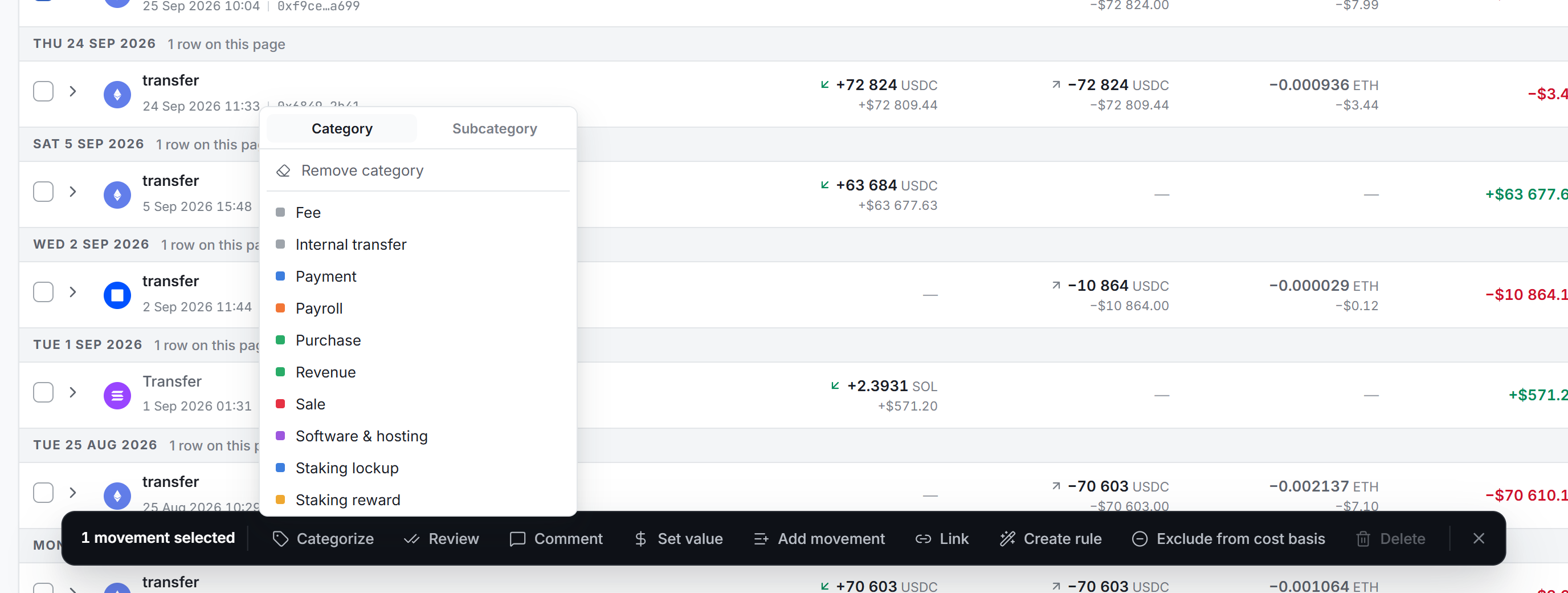
The category applies to every selected movement. A category set by hand overrides every rule. The tooltip of the category pill then reads "Set by hand on this movement".
A movement carries one category and one subcategory. Setting one never changes the other. The subcategoryA second, free label for your own analysis. It changes no figure. is a second label to organize your ledger. It changes no figure.
Create a category
If the name you need is not in the list:
- Type it in the New category box at the bottom of the panel.
- Select Create, or press Enter.
This creates the category and applies it to the selected movements in one step. The Subcategory tab works the same way.
Remove a category
When the selection has a category, Remove category shows at the top of the panel. It leaves the movements with no category, and no rule gives them one again.
A movement in a transaction linkA group of movements from different transactions that share one category, set by hand on all of them at once. keeps its category: the link owns it. Change it from the link. See Link movements.
The list never offers Unclassified. Unclassified is no category at all, so use Remove category.
The category of a whole transaction
You can also label a whole transaction. Open the row's Transaction details and use Category for this transaction. Type a name, select it, or select Create for a new one. To go back, select Use the derived one.
This label is different from a movement's category:
| Movement category | Category for this transaction | |
|---|---|---|
| Set from | The selection bar | The transaction details window |
| What it changes | The movement | The label the row shows |
| Read by cost basis and the ERP | Yes | No |
| The movements below | Take the new category | Keep their own categories |
Use the transaction label to make the ledger easier to read. To change what the books count, categorize the movements.
When to make a rule instead
If the same kind of movement comes back every week, a rule is better than a category set by hand. A rule also categorizes the movements that arrive later.
- Select one or more movements of that kind.
- Select Create rule in the selection bar.
- Check the conditions. The form starts with what the selected movements have in common: the accounts, the token, the method and the type.
- Choose the category and save the rule.
See Create a rule and How classification works.
Review and comment
These two actions apply to transactions, not to movements. If you select three movements of one transaction, they mark or write on one transaction.
- Review opens three choices: Reviewed, Approved and Not reviewed. The panel says how many transactions it marks. A message then offers Undo for a few seconds. The mark is a note for your team: it changes no category and no figure.
- Comment writes one note on each transaction behind the selection. Each note can be deleted on its own, from the transaction details window.
Exclude from cost basis
Use Exclude from cost basis for value that is still yours, for example a transfer to an account that Conta Finance does not track. The movement then builds no cost basis and realizes no gain or loss. The ledger, the balances and the category stay as they are.
When every selected movement is excluded, the button reads Count in cost basis. It makes the movements count again.
The button is not available in two cases:
- The selection mixes excluded and counted movements. Select only one kind.
- Every selected movement is already in the Internal transferAn asset moving between two of your accounts. It is not a disposal, so no lot is consumed. category, which never counts in cost basis.
Link movements
A transaction link makes movements of different transactions share one category.
- Select the movements.
- Select Link in the selection bar.
- In Shared category, pick the category.
- Check the Members. To add the movements selected in the table, select Add selected.
- Select Save.
Each linked transaction then shows the link mark. Select the mark to change the members or the category, or to Delete link.
Potential bridges
Conta Finance pairs an asset that left one platform with the same asset that arrived on another platform soon after, for a similar amount. Nothing on the platforms links the two, so it is a guess. Check both sides on the explorers before you decide.
Select the bridge mark of a row to open Potential bridge. Then choose one of these:
| Choice | When | What it does |
|---|---|---|
| Mark as internal transfer | Your own asset arrived on another platform. | Both sides leave cost basis. No gain is realized. |
| Mark as swap | The crossing gave you a different asset. | Both sides stay in cost basis: a disposal and an acquisition. |
| Record bridge fee | After you mark it as an internal transfer, if the bridge kept part of the asset. | Records what went missing as a fee. |
| Not a bridge | The two transactions are not related. | Removes the pair from Potential bridges. Undo brings it back. |
If your organization records bridge fees automatically, Record bridge fee is not available. The fee is recorded when both sides are marked as an internal transfer.