The Transactions page
Every movement across your accounts, grouped into transactions, with the views and marks that show what still needs work.
Where to find it:your-organization.conta.financeTransactions
The Transactions page is the ledger of your organization. Each row is one transactionOne on-chain transaction or one exchange operation. It holds one or more movements.. Expand a row to see its movementsOne asset going into or out of one of your accounts. A transaction has one movement per account and asset.: one for each of your accounts and each asset that moved.
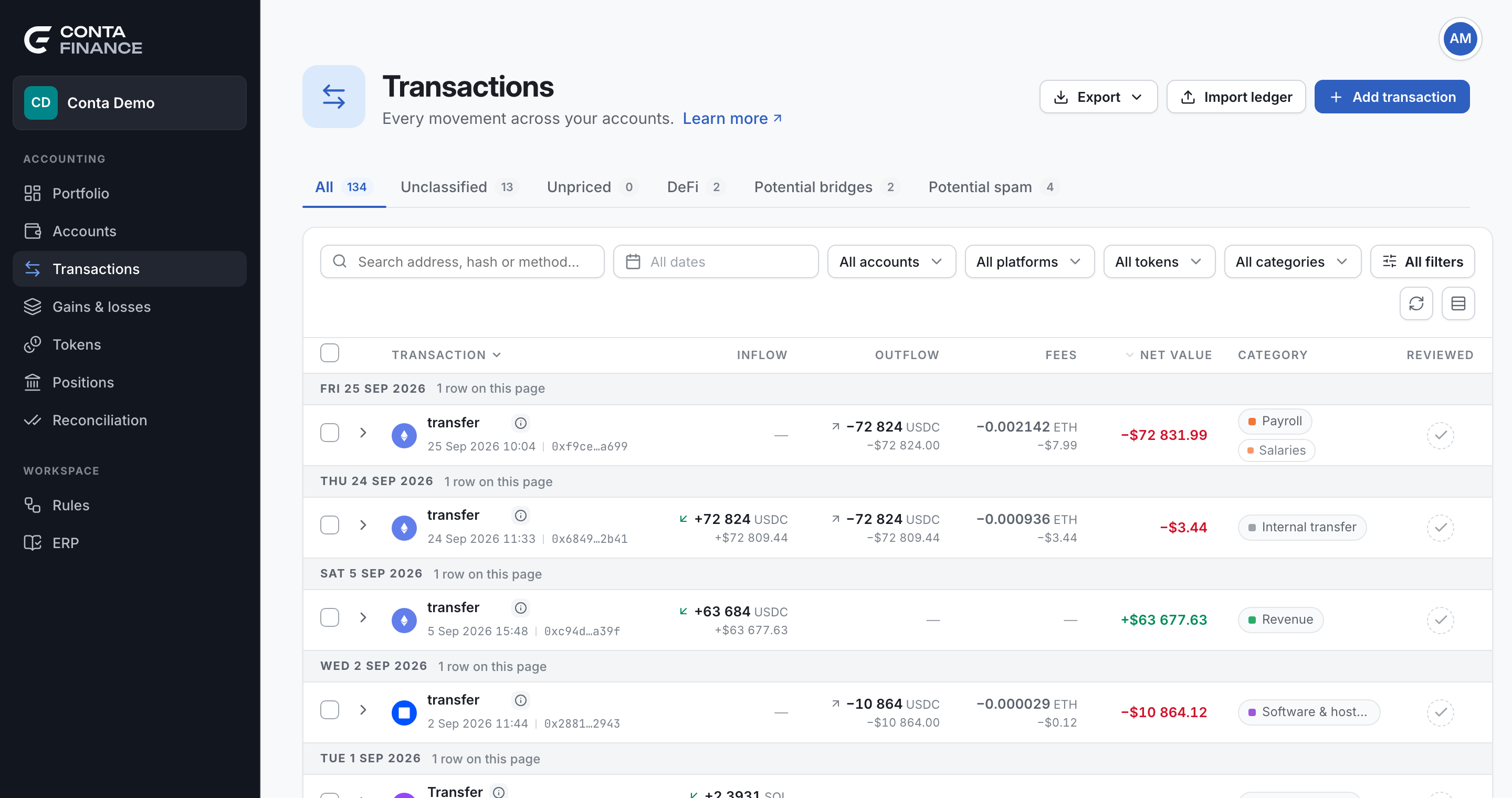
The header
| Action | What it does |
|---|---|
| Export | Opens a menu with Excel (.xlsx) and CSV. The file holds every transaction that matches the current filters, not only the page on screen, with one line for each movement. |
| Import ledger | Opens the import wizard. See Import a ledger. |
| Add transaction | Opens a form to enter a transaction by hand. See Add a transaction. |
The last item of the Export menu shows the decimal separator the file uses. Select it to change the number format in Organization settings.
The working views
The tabs under the header are working views. Each tab shows a part of the ledger, and its number counts the transactions it holds under the filters on screen. Filter by one platform and every number goes down with the table.
| Tab | What it holds |
|---|---|
| All | The whole ledger, without potential spam. |
| Unclassified | Transactions with a movement that has no category. |
| Unpriced | Transactions with a token that has no price for its date. |
| DeFi | Transactions whose counterparty is a known protocol contract. |
| Potential bridges | Transactions that hold one side of a suspected transfer between two platforms. |
| Potential spam | Transactions flagged as forged transfers, or as transfers of a spam token. |
Potential spam does not show in the other views. To see it inline, open All filters and tick Include potential spam in the Exceptions section.
An empty working view is the good outcome: there is nothing left to do in it.
The table
Day separators
When the table is in order of time, a separator heads each day, for example MON 27 JUL 2026. It also counts the rows of that day on the page. Dates and times are in UTC.
Sort the table
Two columns sort the table:
- Select the Transaction header to sort by time. This is the default, newest first.
- Select the Net value header to sort by value, largest first.
Select the same header again to reverse the order. When you sort by value, the day separators go away, because the days are no longer in sequence. A transaction with no value always sorts last.
The row
| Column | What it shows |
|---|---|
| Transaction | The platform mark, the method the transaction called, the marks, and under them the date, the time and a short hash. |
| Inflow | What came in, as a token quantity with its value under it. |
| Outflow | What went out, the same way. |
| Fees | The gas the transaction paid. |
| Net value | Inflow minus outflow minus fees, in your organization currency. |
| Category | The category of the transaction, and its subcategory when it has one. |
| ERP | Where the row is in your ERP. This column shows only when the organization has an ERP company. |
| Reviewed | The review mark. |
Some details of the row:
- The method is a value from the platform, not a name. Select it to filter the ledger by that method. When the transaction called no contract, the row reads Transfer in grey.
- Inflow and Outflow add up the movements of each token. When more than one token moved in the same direction, the cell shows the largest one, and its tooltip says how many others moved. Expand the row to see them all.
- No price shows in place of a value when a token has no price for that day. Net value then shows a dash: it is never a partial sum.
- The warning icon beside Net value means price data is missing. Select it to open Missing price data and add the price. See Fix a token with no price.
- On hover, the row shows View on explorer and Transaction details, and copy buttons for the method and the hash. An exchange has no explorer, so its rows show no explorer button.
The marks
Small marks after the method tell you more about the transaction. Hold the pointer on a mark to read what it means.
| Mark | Meaning | Select it to |
|---|---|---|
| Link | The transaction is part of a transaction link: its linked movements share one category. | Open the link and manage it. |
| Potential bridge | One side of a suspected transfer between two platforms. | Open the pair and decide. See Categorize movements. |
| DeFi | The counterparty is a known DeFi protocol contract. | Nothing. It informs only. |
| Excluded | A movement of the transaction is excluded from cost basis and P&L. | Nothing. It informs only. |
| Pieces, with a number | The exchange filled the order in that many pieces. The amounts on the row are their total. | Nothing. Expand the row to see each piece. |
| Comment, with a number | The transaction has comments. | Open the transaction details and read them. |
The category
The category cell shows one category for the whole transaction. It comes from the main movement, the one that moved the most value, and it never comes from gas unless the transaction is only gas. See Transactions and movements.
- A filled pill is the categoryThe accounting label of a movement, such as Purchase or Fee. Cost basis reads it..
- A dashed amber pill that reads Unclassified means no category yet. It is work to do.
- A hollow chip beside it is a subcategoryA second, free label for your own analysis. It changes no figure.. When the movements carry more than one, the chip shows the first one and a count.
Hold the pointer on the pill to see where the category came from:
| Tooltip | Meaning |
|---|---|
| From the rule "name" | A rule set it. The tooltip names the rule. |
| Set by hand on this movement. It overrides every rule. | Somebody categorized the movement from the selection bar. |
| Set by hand through this movement's transaction link. It overrides every rule. | The movement is in a link, and the link sets its category. |
| No rule matches this movement. Categorize it, or write a rule that covers it. | The movement is unclassified. |
| Set by hand on this transaction. | Somebody labelled the whole transaction in its details window. The movements keep their own categories. |
The ERP mark
When the organization has an ERP company, each row shows where its document is: Synced, Ready, Blocked, Refused or Ignored. The tooltip says why, and what to do when there is something to do. Select the mark to open the document. A ring that pulses means the answer is on its way. A still ring means the ledger writes no entry for that row. See Send to the ERP.
The review mark
The last column records how far the review of a transaction got. Select the mark to move it to the next state.
| State | Looks like | Next click |
|---|---|---|
| Not reviewed | A dashed grey ring | Marks it reviewed |
| Reviewed | A green ring with a check | Marks it approved |
| Approved | A filled green disc with a double check | Asks first, then clears the mark |
After each click, a message at the bottom of the page offers Undo for a few seconds. Undo puts the mark back as it was, with its person and its day. To clear an approved mark, Conta first says who approved it and when.
The tooltip shows the state, the person who set it and the day. Marks set before Conta recorded the person show "Not recorded". The mark is a note for your team. It changes no category and no figure. It also stays when the transaction changes later, so read it as "somebody looked at this on that day".
Rollup rows
A row that reads Rollup and a name is not one transaction. A rollup rule folded many movements into it, and the row shows the period it covers and the number of movements. A rollup row has no hash, no review mark and no details window. Expand it to see its movements.
Expand a row
Select a row to expand it. The panel lists every movement of the transaction:
| Column | What it shows |
|---|---|
| Account | The account that owns the movement. In a transfer between two of your accounts, this is the only column that tells the two sides apart. |
| Dir | in, out, or fee for gas. |
| Type | The kind of movement, for example erc20 or gas, with the link, bridge and excluded marks. |
| Token | The asset. |
| Category | The movement's own category and subcategory, with the same origin tooltip. |
| Amount | The token quantity. |
| Value | The value in your organization currency, or No price. |
| From and To | The two sides. A mark says if each side is one of your accounts, a contactAn address you named that belongs to someone else, such as a supplier., or unidentified. |
Each movement has a checkbox, so you can act on one movement alone. A gas movement has no checkbox you can tick. See Categorize movements.
On the page of one account, the panel can also show the same transaction seen from your other accounts. You cannot select those movements there: open that account to act on them.
Density, refresh and page size
The two buttons at the right end of the toolbar:
- Refresh transactions reads the ledger again and keeps your filters. Use it to see transactions that arrived after you opened the page.
- Compact rows makes the rows shorter, so more fit on the screen. Comfortable rows puts them back.
Under the table, choose 25, 50, 100 or 200 transactions for each page.
The transaction details window
Hold the pointer on a row and select Transaction details. The window has three parts.
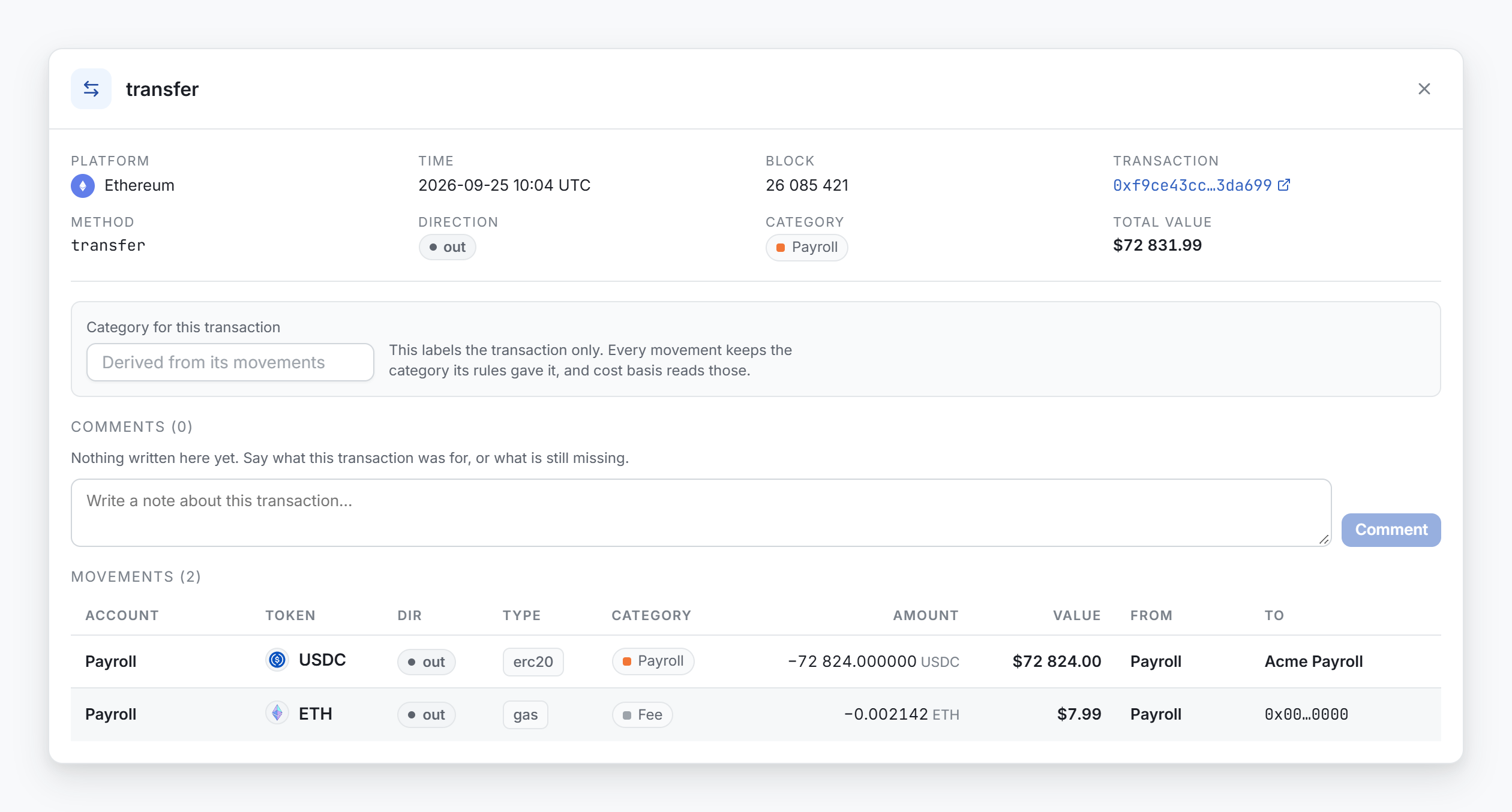
The facts. Platform, Time in UTC, Block, Transaction (the hash, with a link to the explorer), Method, Direction, Category, Total value, and Link when the transaction is in a link. An exchange has no blocks, so its transactions show no Block.
What you can edit.
- Category for this transaction labels the whole transaction. It does not change the movements, and cost basis does not read it. See Categorize movements.
- Comments holds the notes your team wrote on the transaction. Type a note and press Enter, or select Comment. Press Shift + Enter for a new line. To remove a note, select its delete icon. You cannot edit a note: delete it and write a new one.
The movements. Movements lists each movement with its account, token, direction, type, category, amount, value and both sides.