Send to the ERP
Read what a date range would write to QuickBooks Online, fix what stops it, send it, and correct an entry already sent.
Where to find it:your-organization.conta.financeERPSync
The Sync tab shows what a date range would write to QuickBooks Online before anything leaves Conta Finance. Each transaction is one document, and each rollup is one document. Read the report, fix what is blocked, then send.
This article is about QuickBooks Online, and what it says about the Sync tab also holds for Holded. The differences of Holded: you need no connection of your own, only a stored API key; Holded has no link to an entry and gives its own id in place of a document number; and a small plan has a monthly quota of calls. See Connect Holded. For Universal ERP, nothing is sent: the tab has the same report and the same list of what stops it, and Export for import writes the ready documents as a file. See Use Universal ERP.
Before you start
- Connect QuickBooks Online with your own Intuit login, and set up the default rule.
- You need Read and edit access to send, write again or undo. With Read only access, you can read the report.
- You need a connection of your own. Conta sends each document with the connection of the person who sends, never with the connection of someone else. If the organization has a company and you are not connected, you can read the report, but Send to QuickBooks Online, Write changed again and the actions on a row are off. Point at a button to read why, then connect on the Rules tab.
Read the range
- Open ERP in the sidebar and select the Sync tab.
- Pick the dates. By default, the range runs from the first day of the current month to today.
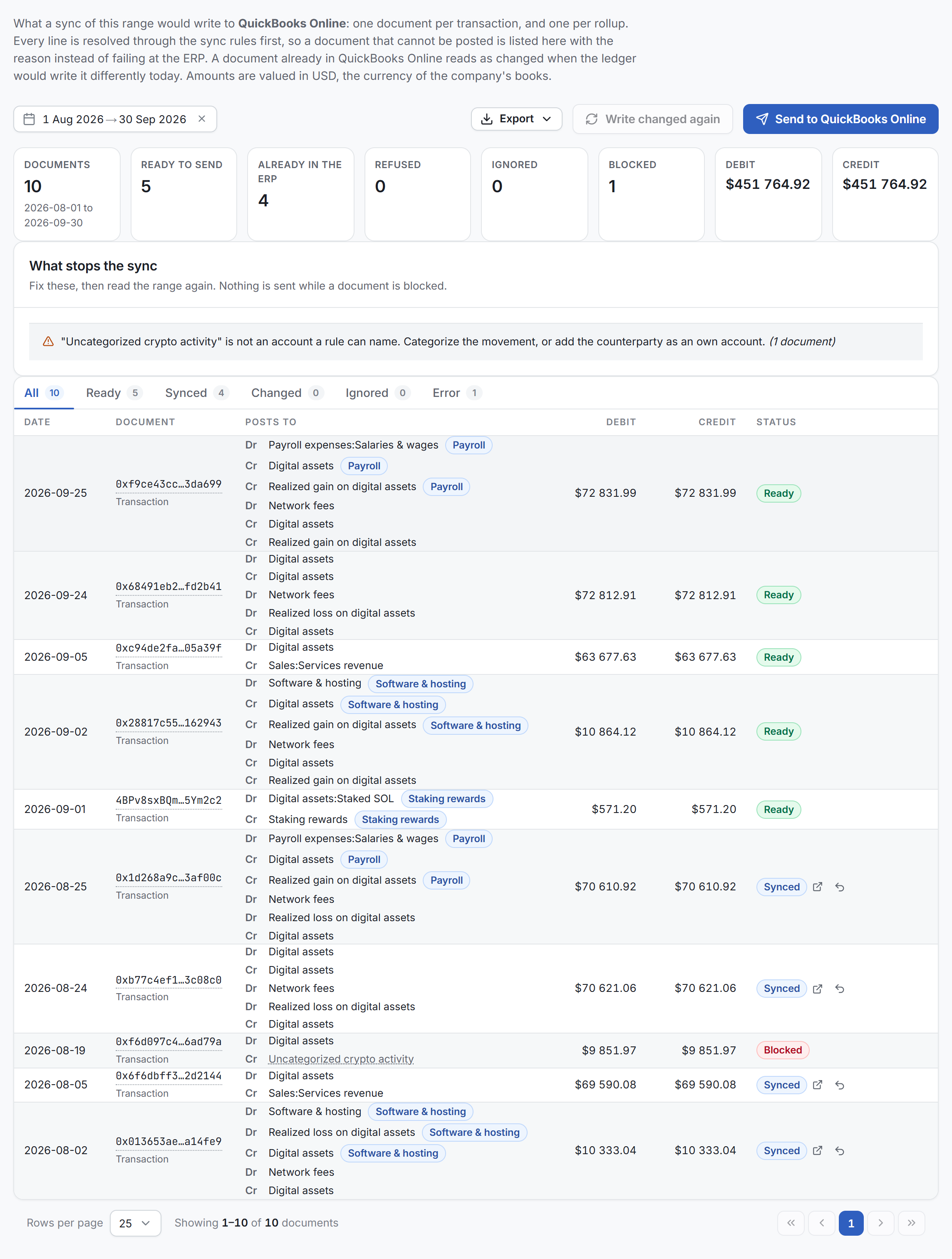
The figures cover the whole range, whatever page or view is on screen.
| Figure | Meaning |
|---|---|
| Documents | Every document of the range. |
| Ready to send | Documents the next send writes. Refused documents are inside this figure. A document with an unknown result is not. |
| Already in the ERP | Documents in QuickBooks. The note says how many are out of date. |
| Refused | Documents QuickBooks refused last time. The next send tries them again. |
| Result unknown | Shows only when a send had no known result: the entry can be in the ERP already. The next send does not write these documents again. Check the ERP first. |
| Ignored | Documents kept out on purpose. |
| Blocked | Documents Conta cannot post until you fix something. |
| Debit and Credit | The totals of the range, in the currency of the books. Ignored documents are not in them. |
The states of a document
Each document has one state. Conta checks them in this order and stops at the first that applies:
- Synced: the document is in QuickBooks.
- Ignored: a rule with Do not sync these categories holds one of its movements, or its total is under Minimum value to sync.
- Refused: Conta sent it, QuickBooks said no, and every line still resolves. Point at the badge to read the reason QuickBooks gave. If a line no longer resolves, the document is Blocked, and its badge also gives the reason of the last send.
- Ready: every line resolves to an active QuickBooks account, and the entry balances. It is not in QuickBooks yet.
- Blocked: none of the above. A line has no QuickBooks account it can post to, or the entry does not balance.
Blocked is a problem in Conta: fix a rule or a category. Refused is a problem QuickBooks found: read its reason. Ignored is a decision somebody made, so nothing is left to do.
Changed is not a state of its own. It marks a synced document that the ledger writes differently today, for example after you correct a category or a price arrives. Missing marks a synced document the ledger no longer produces, such as a deleted transaction.
What stops the sync
This card lists each reason that blocks documents, with how many it holds back. Each reason says what to do. Fix the rules or the categories, then open the Sync tab again to read the range again.
The views
The tabs above the table filter the documents. The count beside each tab covers the whole range.
| View | Documents |
|---|---|
| All | Every document. |
| Ready | Ready, refused included. |
| Synced | Already in QuickBooks. |
| Changed | Synced, and out of date. |
| Ignored | Kept out on purpose. |
| Error | Refused, blocked and result unknown together. Each row still says which. |
The reference in the Document column opens its movements on the Transactions page.
Send the range
- Select Send to QuickBooks Online. If the button is off, point at it to read why.
- Read the confirmation. It says how many documents go and in which currency.
- Select Send.
A card shows how many documents were written and the reason for each refusal. One send writes at most 100 documents; the card says how many are left for the next one. Send the same range again as often as you need: a document already written is never written twice.
One send, write again or undo runs at a time. If another one is running, for example from another person or another tab, Conta refuses the second one and sends nothing. Wait until the first one ends, then try again.
If the connection drops, the request times out, or QuickBooks answers with an error on its side, Conta cannot know if the entry exists. It does not send that document again by itself, and the document stays in the Error view. Search for its reference in QuickBooks. If the entry is not there, select Take this attempt back out, so the next send writes it again on the document, then Take the attempt back out, and send the range again.
Correct a document already sent
QuickBooks keeps the entry. Conta never edits it there: it deletes it and writes a new one.
- Write it again. On a changed row, select Write it again into the ERP as the ledger says it today. To do all the changed documents of the range, up to 100 at a time, select Write changed again. Confirm with Write again. The old entry is deleted, and the new one gets a new id in QuickBooks.
- Undo. Select Take it back out of the ERP, then Remove from the ERP. The entry is deleted in QuickBooks, and the next send of the range can write it again. A Missing document offers only this action.
To open the entry in QuickBooks, select Read the entry in the ERP in the Status column. Holded has no page for one entry, so the column shows no link for it. Search for the reference of the document in Holded.
Export the range
Select Export, then Excel (.xlsx) or CSV. The export covers the whole range, whatever view is open:
- Chart of Accounts Summary: the lines and the debit and credit totals per QuickBooks account.
- Pre-Sync: one row per journal line, with its rule and slot. Is Well Configured? gives the reason when a line cannot go.
- Post-Sync: only what was sent, with the status, the doc number and the error.
Excel gives one workbook with three sheets. CSV gives three files. For Universal ERP, the button is Export review and the report has the first two sheets only, because nothing is sent from it.
If the range holds more than 5 000 transactions, the export is refused and the message tells you to pick a shorter range. A report that stopped at 5 000 would not be the range it says it is.
Check one transaction
The Debug tab shows each transaction of the ledger as the entry QuickBooks would receive. It sends nothing, and it works before you connect.
- Switch between In Conta (the movements) and In QuickBooks Online (the journal lines).
- A badge says Balanced or Unbalanced, and the warnings are under the table.
Rollups do not show here. Read them on the Sync tab.
Find rows by ERP state
While the organization has a company, the Transactions page has an ERP column. It does not need your own connection. Select a mark to open the document. To filter, select All filters, then pick a State in the QuickBooks Online section. This filter is slower than the others. See Filter and search transactions.