Map categories to QuickBooks accounts
Use the default rule and category rules to say which QuickBooks account each line of a journal entry posts to.
Where to find it:your-organization.conta.financeERPRules
Conta Finance turns each transaction into one journal entryThe record of a transaction in the accounting system: a debit and a credit for each movement.. The sync rules say which QuickBooks account each line posts to. The default rule answers for every categoryThe accounting label of a movement, such as Purchase or Fee. Cost basis reads it.. A category rule changes the accounts for some categories only.
Before you start
- Connect QuickBooks Online and select Refresh accounts. The rules pick from the ledger accounts Conta read.
- For Universal ERP, import your chart of accounts instead. The rules pick from the accounts you uploaded. Every step below works the same, with the accounts of your chart in place of the QuickBooks accounts.
- You need Read and edit access to change the rules and the settings.
How a movement becomes a journal entry
Each movementOne asset going into or out of one of your accounts. A transaction has one movement per account and asset. writes a debit and a credit. Each line goes to a slot, and the rules put a QuickBooks account in each slot.
- In: debit Asset, credit Income, at the value that day.
- Out: a disposalAn asset leaving your portfolio, by a sale, a swap or a payment. It consumes lots.. Debit Expenses at the value that day. Credit Asset at the cost of the lotsOne acquisition of an asset: how much came in, when, and at what cost. consumed. The difference goes to Realized gains or Realized losses, as on the Gains & losses page.
- Gas: category Fee. It posts to Fees, in the entry of the transaction that paid it.
- Swap: both legs post against Swaps register.
- Transfer between two of your accounts: debit the Asset of the receiving account, credit the Asset of the sending one.
- No category: the document is blocked until you categorize the movement.
Amounts are in the currency of the company's books. A movement with no price posts 0.00 and shows a warning.
An example
You pay a supplier 0.5 ETH, categorized Purchase. At $3 000 per ETH, it is worth $1 500. The lots it consumes cost $1 000. The gas is 0.001 ETH, worth $3.00, from lots that cost $2.00.
Your default rule puts Crypto assets in Asset, Purchases in Expenses, Bank fees in Fees and Crypto gains and losses in Realized gains. The entry has these lines:
| Line | Slot | QuickBooks account | Debit | Credit |
|---|---|---|---|---|
| The payment, at its value | Expenses | Purchases | $1 500.00 | |
| The ETH paid, at cost | Asset | Crypto assets | $1 000.00 | |
| The gain on the payment | Realized gains | Crypto gains and losses | $500.00 | |
| The gas, at its value | Fees | Bank fees | $3.00 | |
| The ETH paid as gas, at cost | Asset | Crypto assets | $2.00 | |
| The gain on the gas | Realized gains | Crypto gains and losses | $1.00 | |
| Total | $1 503.00 | $1 503.00 |
To check a real transaction this way, use the Debug tab. See Send to the ERP.
Set up the default rule
- Open ERP in the sidebar, on the Rules tab.
- In the default rule, select a QuickBooks account in each slot you need.
- If the company tracks classes, select one in Class (optional).
- Select Create rule. Later, the button is Save changes.
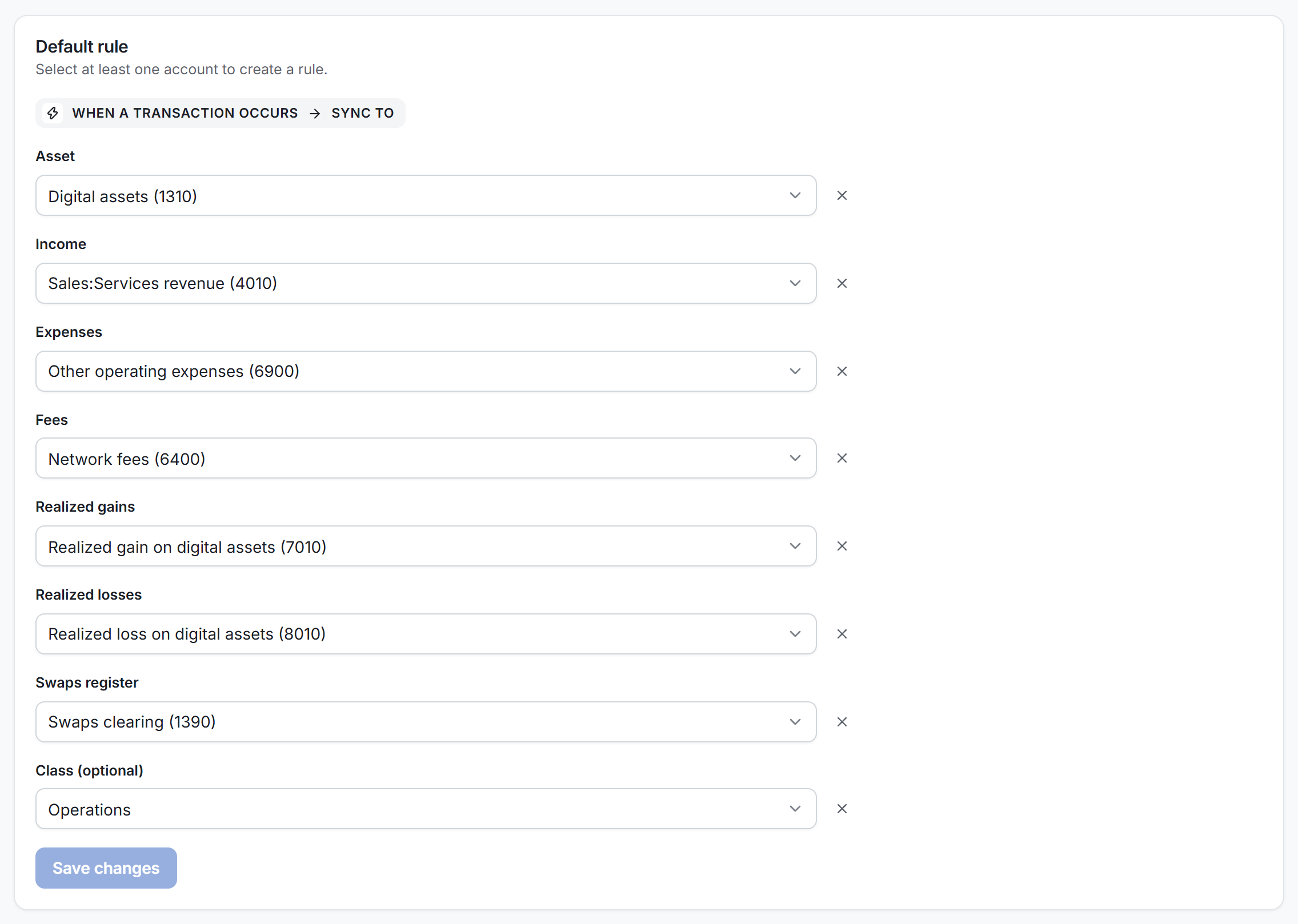
| Slot | What posts there | Accepts |
|---|---|---|
| Asset | The digital assets | Asset accounts |
| Income | A movement in | Income accounts |
| Expenses | A movement out | Expense accounts |
| Fees | The gas | Expense accounts |
| Realized gains | The gain of a disposal | Income or expense accounts |
| Realized losses | The loss of a disposal | Expense or income accounts |
| Swaps register | Both legs of a swap | Asset or liability accounts |
Each picker shows only the active accounts its slot accepts. Gains and losses can share one account. You need at least one account to create the rule. If a line needs a slot that no rule fills, its document is blocked.
A rule can point to an account that is not in the chart any more. For QuickBooks Online, this happens when the account is deleted there and you select Refresh accounts. For Universal ERP, it happens when you replace the whole chart with a file that has no row with that code. The documents that need the account are blocked until you pick another account. The message says to refresh the accounts, or to import the chart of accounts again.
The same happens when the ERP keeps the account but makes it inactive, or changes its type to one the slot does not accept. The message then names the slot and the type that the slot accepts.
Add a category rule
- Under Category rules, select Add rule.
- In Categories, select the categories this rule takes over.
- Optionally, type a name in Name (optional). With no name, the rule is named after its categories.
- Fill only the slots that change, for example Income for staking rewards. Leave the others empty.
- Select Create rule.
- A category belongs to one rule. The list does not offer the categories another rule holds.
- The rules have no order. No rule can hide another.
- An empty slot follows the default rule. You pick the asset account once.
Add rule is off until the default rule exists. To change a rule, select Edit on its row. When you select Delete on a rule and confirm, its categories follow the default rule again.
Keep a category out of QuickBooks
- Add or edit a category rule for those categories.
- Turn on Do not sync these categories.
- Save the rule.
These documents are Ignored, never Blocked. If one movement of a transaction is ignored, the whole document is ignored. When you turn the switch off, the rule gets back its accounts. The default rule cannot ignore.
Categories also offers unclassified. A rule that ignores it keeps every movement with no category out of QuickBooks.
The Settings tab
These three choices apply to the whole ERP. Each saves when you change it; the minimum saves when you leave the field.
| Setting | What it does |
|---|---|
| Minimum value to sync | A document whose debit total is less than this is Ignored. Write it in the currency of the books. Empty sends every document. |
| Tag every line with the class its rule names | Turn it off if the company does not track classes. QuickBooks refuses a class it does not hold. |
| Use the note on a transaction as the memo | The newest note on the transaction replaces the memo Conta writes. |
Gas and rollups
A single gas fee is often worth less than a cent. On its own, it rounds to 0.00 and can fall under the minimum.
To keep these fees in the books, group them with a rollup rule. See Create a rule. QuickBooks then receives one document per rollup:
- It replaces the documents of the transactions it groups.
- It adds the exact values of its movements, then rounds once, with one line per side, account and category.
- The minimum applies to its total, and its date is its last day with activity.
- It is written only when the date range holds all of it. A rollup by month needs a range that covers the whole month. If the range holds only part of it, the document is blocked and the message gives the days the rollup covers, because the same document number would otherwise carry two different amounts.