ERP settings
The three settings that apply to every document sent to QuickBooks Online, and what each one changes in the entries.
Where to find it:your-organization.conta.financeERPSettings
The Settings tab of the ERP page holds three choices for the whole ERP. The sync rules decide which account each line posts to. These settings decide if a document is sent at all, and what travels with it.
Each setting saves on its own: a switch when you select it, the minimum when you leave the field. A message confirms each save. If a save fails, the field goes back to the stored value. You need Read and edit access to change them. The settings belong to the company of the ERP, so the tab shows no control until you set up the ERP on the Rules tab.
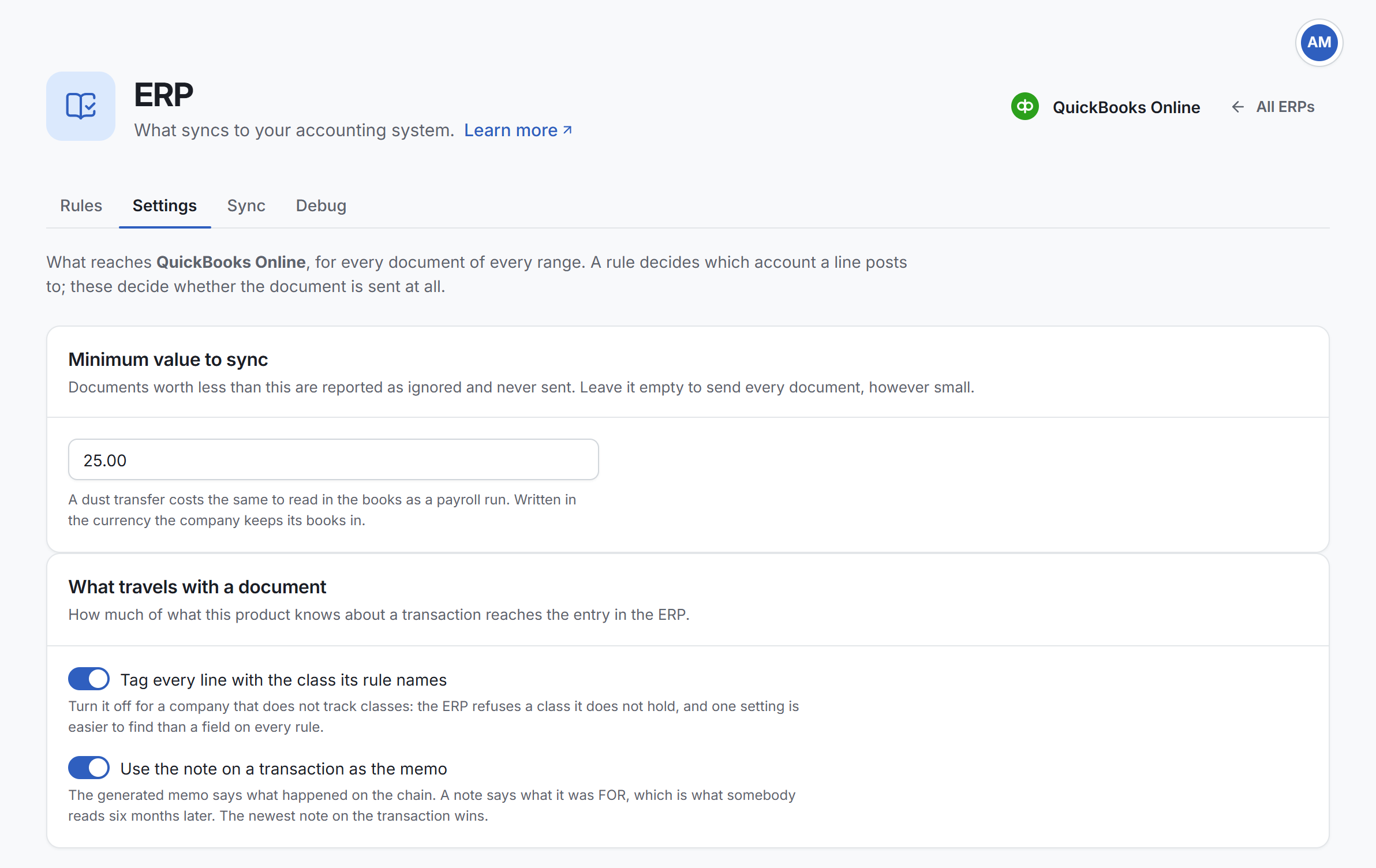
Summary
| Setting | Default | What it changes |
|---|---|---|
| Minimum value to sync | Empty: every document is sent | Small documents become Ignored. |
| Tag every line with the class its rule names | On | Each line carries the class of its rule, or no class. |
| Use the note on a transaction as the memo | Off | The memo of the entry is the newest note, or the memo Conta Finance writes. |
Minimum value to sync
A document worth less than this amount is Ignored and never sent. Leave the field empty to send every document, however small.
- Write the amount in the currency of the company's books, not of your organization.
- Conta Finance compares it with the debit total of the document, to the cent.
- For a rollupA rule that groups many small movements, such as fees, into one entry per period for the accounting system., it compares the total of the whole rollup. A rollup of many tiny fees can pass the minimum when none of its fees could alone. See Rollups.
What changes on the Sync tab:
- The small documents move to Ignored. They are not Blocked: there is nothing to fix.
- Ignored documents are not in the Debit and Credit totals of the range.
- A document already in QuickBooks Online stays there and stays Synced. The minimum applies only to documents not sent yet.
Clear the field to send every document again.
Tag every line with the class its rule names
A sync rule can name a class in Class (optional). When this setting is on, every line that the rule resolves carries that class in QuickBooks Online. When it is off, no line carries a class, whatever the rules say.
In Holded, a class is a tag. Turn it off if the company does not track classes. QuickBooks Online refuses a class it does not hold, so a document with such a class comes back Refused.
A class is part of what Conta Finance compares for a document already sent. If you turn the setting on or off, the synced documents whose lines change show as Changed on the Sync tab. Write them again to bring QuickBooks Online up to date. See Send to the ERP.
Use the note on a transaction as the memo
Each entry carries a memo. By default, Conta Finance writes it from the transaction: the platform and the hash. It says what happened on the platform.
When this setting is on, the newest note somebody wrote on the transaction replaces that memo. A note says what the transaction was for, which is what an accountant reads months later. A transaction with no note keeps the memo Conta Finance writes.
- The notes are the comments in the transaction details window. See The Transactions page.
- The memo is not part of what Conta Finance compares for a document already sent. A new note does not mark a synced document as Changed.