Check an entry before sending
Use the Debug tab to read each transaction as the journal entry QuickBooks Online would receive, and check its lines, balance and warnings.
Where to find it:your-organization.conta.financeERPDebug
The Debug tab shows every transaction of your ledger as a journal entry: a debit and a credit for each movementOne asset going into or out of one of your accounts. A transaction has one movement per account and asset.. Use it to check the accounting of a transaction before anything goes to QuickBooks Online. Nothing is sent from this tab, and it works before you connect a company.
Open the entries
- Open ERP in the sidebar and select the Debug tab.
- Read the card at the top. It says how each kind of movement posts.
- Pick a view for all the cards: In Conta or In QuickBooks Online.
The list shows one card for each transaction, newest first, 10 for each page by default. Beside the view switch, a summary says All balanced, or how many entries are unbalanced and how many have warnings on the page.
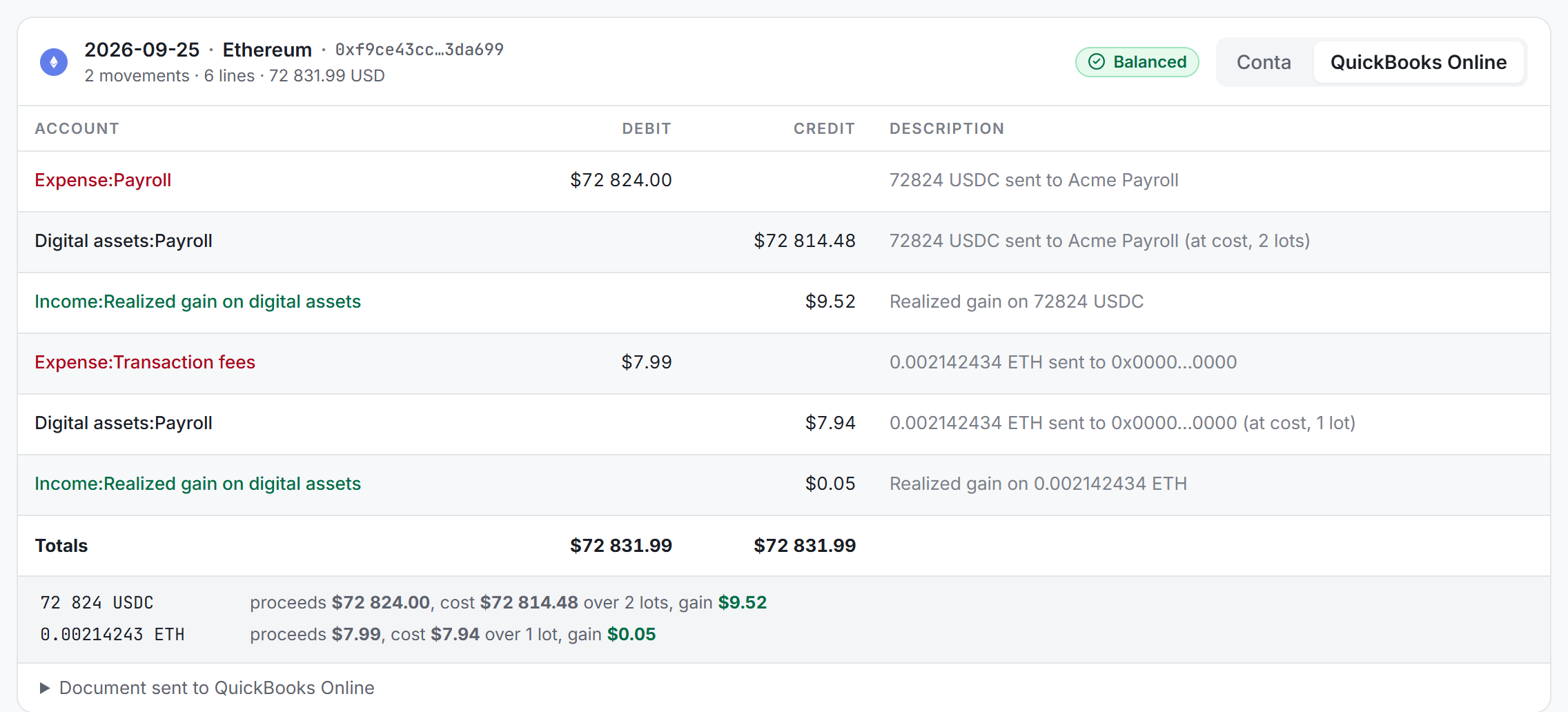
Read one card
The head of the card shows the date, the platform and a short hash. Under it: the number of movements, the number of lines and the total debit.
Each card has its own switch, so you can flip one entry back and forth while the others stay as they are:
- Conta lists the movements: Account, Movement (In, Out or Gas), Amount, Value, Category and Counterparty.
- QuickBooks Online lists the journal lines: Account, Debit, Credit and Description, with a Totals row. Open Document sent to QuickBooks Online to see the raw document.
Check that both views tell the same story. A transaction that writes no line reads Nothing is sent for this transaction.
The balance badge
- Balanced: the debits equal the credits.
- Unbalanced: they do not. QuickBooks Online refuses an entry that does not balance. Write to [email protected] with the hash.
The warnings
A badge such as 2 warnings means the entry needs a look. The warnings are listed under the card, in both views:
| Warning says | What to do |
|---|---|
| A token has no price on that day, so its line posts 0.00. | Add the price. See Fix a token with no price. |
| A movement is excluded from cost basis by hand, so it posts at value with no gain or loss. | Nothing, if you meant it. |
| A movement out has no cost basis, so it posts at value with no gain or loss. | Check the price and the history of the token. |
| Part of a disposal had no acquisition lot, so its proceeds are all gain. | Look for a missing movement in. See Fix a balance mismatch. |
| A transfer goes to an account that is not tracked, so it posts to that account's own asset account. | Add the account, or change the category. |
The disposal lines
When the entry holds a disposalAn asset leaving your portfolio, by a sale, a swap or a payment. It consumes lots., one line under the journal lines sums it up: the amount, the proceeds, the cost over the number of lotsOne acquisition of an asset: how much came in, when, and at what cost. consumed, and the gain or loss. These figures come from the cost basis, with your cost basis method. The three journal lines of the disposal must add up to them. See Cost basis methods.
The posting accounts
The Debug tab names the accounts of Conta Finance, not your QuickBooks accounts. Each one fills a slot of your sync rules, and the rules decide which QuickBooks account the slot posts to. The Sync tab shows the QuickBooks account of each line.
| Account on the Debug tab | What posts there | Slot |
|---|---|---|
| Digital assets and the account name | The asset of each of your accounts, in and out. | Asset |
| Digital assets, the account name and Locked | Coins you staked, until they come back. No gain and no income. | Asset |
| Income and the category | A movement in, at its value that day. | Income |
| Expense and the category | A movement out, at its value that day. | Expenses |
| Transaction fees | Gas, and every movement with the category Fee. | Fees |
| Realized gain on digital assets | The gain of a disposal. | Realized gains |
| Realized loss on digital assets | The loss of a disposal. | Realized losses |
| Swaps register | Both legs of a swap. It nets to zero when the two legs are worth the same. | Swaps register |
| Uncategorized crypto activity | A movement with no category, so the entry still balances. | None: the document is blocked on the Sync tab. |
A transfer between two of your accounts is one pair: debit the receiving account, credit the sending one.
Limits of the Debug tab
- Values are in the currency of your organization. The Sync tab values the same entries in the currency of the company's books.
- Rollups do not show here. Read them on the Sync tab. See Rollups.
- To send, use the Sync tab. See Send to the ERP.