Ask ContaGPT
Ask questions about your books in plain words, and confirm the changes ContaGPT proposes.
Where to find it:your-organization.conta.financeContaGPT
ContaGPT is a chat inside Conta Finance. You ask a question about your organization's books, and it answers with figures it reads from them.
What ContaGPT can and cannot do
- It reads. It reads your organization's data through the same services the pages use, with your permissions and no others.
- It proposes. It can prepare some changes, such as a new rule. Nothing changes until you confirm.
- It never writes alone. It has no way to change or delete anything by itself.
- Some things it cannot do at all. It cannot add an account, read exchange credentials or delete an account.
ContaGPT shows in the sidebar, under Workspace, only when it is turned on for your organization. If you do not see it, write to [email protected].
Accept the notice
The first time you open ContaGPT, it shows Before you start. Read it before you ask anything.
ContaGPT answers with a language model of Anthropic, which runs outside Conta Finance. Your questions, and the accounting data ContaGPT reads to answer them, go to Anthropic. Anthropic does not use them to train its models, and it deletes them within 30 days. See ContaGPT and your data.
- Open ContaGPT in the sidebar.
- Read the notice.
- Select I understand that my questions and the data read to answer them are sent to Anthropic.
- Select Start using ContaGPT.
You accept once. If the notice changes, ContaGPT asks you again.
Ask a question
- Type your question in Ask ContaGPT at the bottom of the page.
- Press Enter to send it. Press Shift + Enter for a new line.
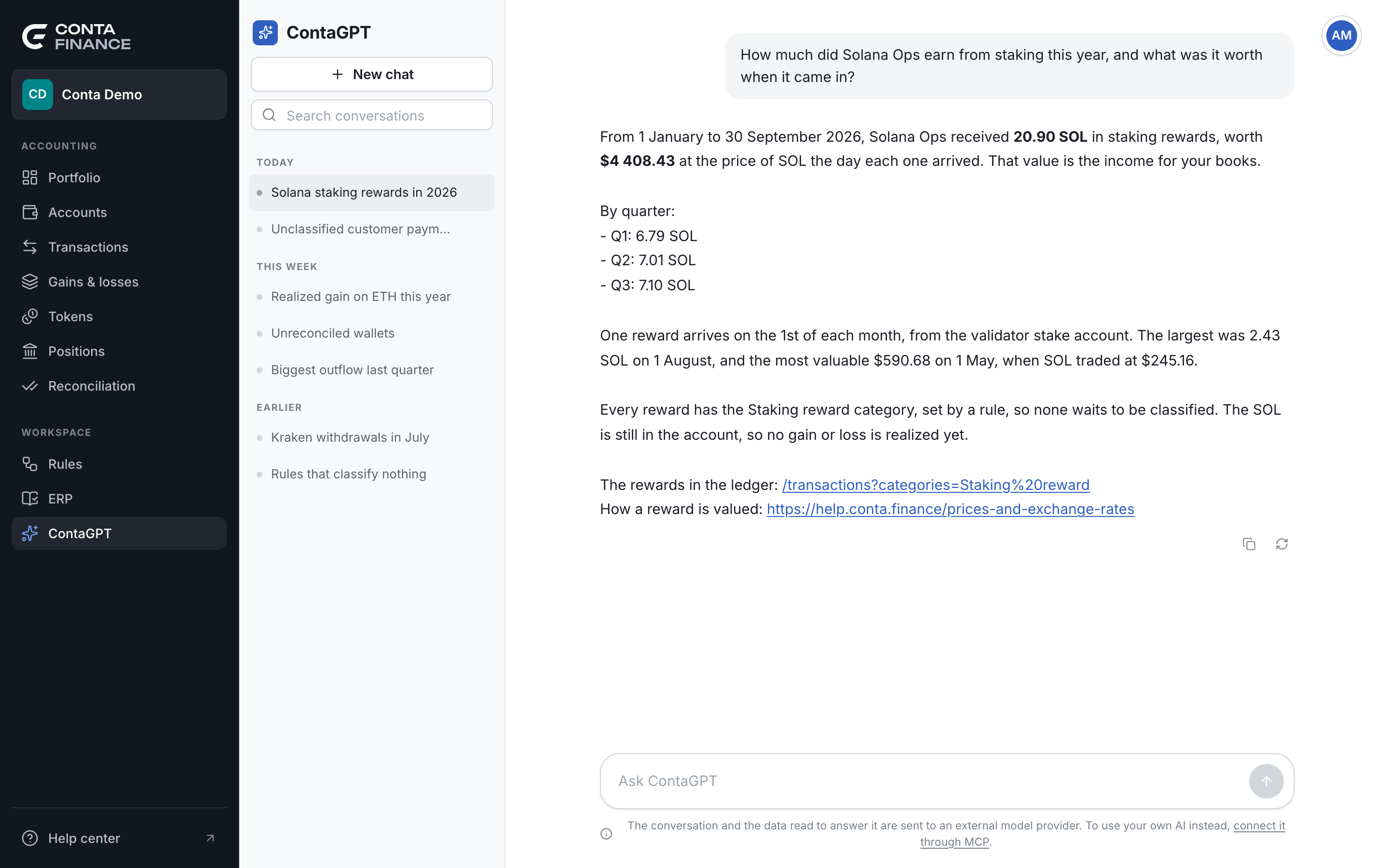
An answer can take a minute or more. While ContaGPT works, it shows what it reads and how long it thinks. You can open another page meanwhile: a dot on ContaGPT in the sidebar tells you when the answer is ready. To stop an answer, select the stop button beside the box.
A new chat offers example questions. Select one to send it, or select Other ideas for more. For example:
- What is still unclassified this month?
- Which rules are not classifying anything?
- What was our biggest outflow last quarter?
- Which wallets are unreconciled, and by how much?
- How much do we have in staking right now?
- What can you read, and what can you not do?
Confirm a proposed change
When you ask for a change, ContaGPT shows a card under its answer. The card says what changes and how many movements or transactions it affects. A rule shows the same way as on the Rules page.
ContaGPT can propose to:
- create, update or delete a rule
- put a category label on one transaction
- mark transactions as reviewed
- save an address as a contact
- put a tag on an account
- Read the card.
- Select the button that names the change, for example Create rule. To refuse, select Discard.
- If the change deletes something, or touches many movements, a second window asks you to confirm again.
After the change runs, the card shows the result. Conta Finance writes this result, not ContaGPT.
Every person with access to the organization can ask ContaGPT. To have ContaGPT prepare a change, you need Read and edit access or Full access. With Read only access, ContaGPT answers and prepares no change. See Roles and access levels.
Manage your conversations
The panel on the left lists your conversations, newest first.
- To start a conversation, select New chat.
- To find one, type in Search conversations.
- To rename one, open its menu and select Rename. Type the new name and press Enter.
- To delete one, open its menu and select Delete, then confirm.
When a conversation gets long, ContaGPT shows This conversation is long. A new chat gives faster and more precise answers. above the box. Select New chat to start a new one. You can also go on in the same conversation.