Confirm a ContaGPT proposal
Read the card of a change ContaGPT prepared, confirm or discard it, and prepare it again when it expires.
Where to find it:your-organization.conta.financeContaGPT
ContaGPT never changes your books by itself. When you ask for a change, it prepares a proposal and shows it as a card under its answer. Nothing changes until you confirm the card.
What ContaGPT can propose
| Change | Button on the card |
|---|---|
| Create a ruleA set of conditions that gives each matching movement a category, a subcategory or a rollup automatically. | Create rule |
| Update a rule | Update rule |
| Delete a rule | Delete rule |
| Put a category label on one transaction | Apply the label |
| Set the review mark of up to 25 transactions | Mark them |
| Save an address as a contactAn address you named that belongs to someone else, such as a supplier. | Save the contact |
| Put a tagA free label you put on accounts and contacts, to find and filter them as a group. on an account | Add the tag |
ContaGPT cannot propose anything else. For example, it cannot add an account, read exchange keys or delete an account.
Before you start
You need Read and edit access or Full access to the organization. With Read only access, ContaGPT answers your questions, but it does not prepare a change and you cannot confirm one. See Read only access.
Read the card
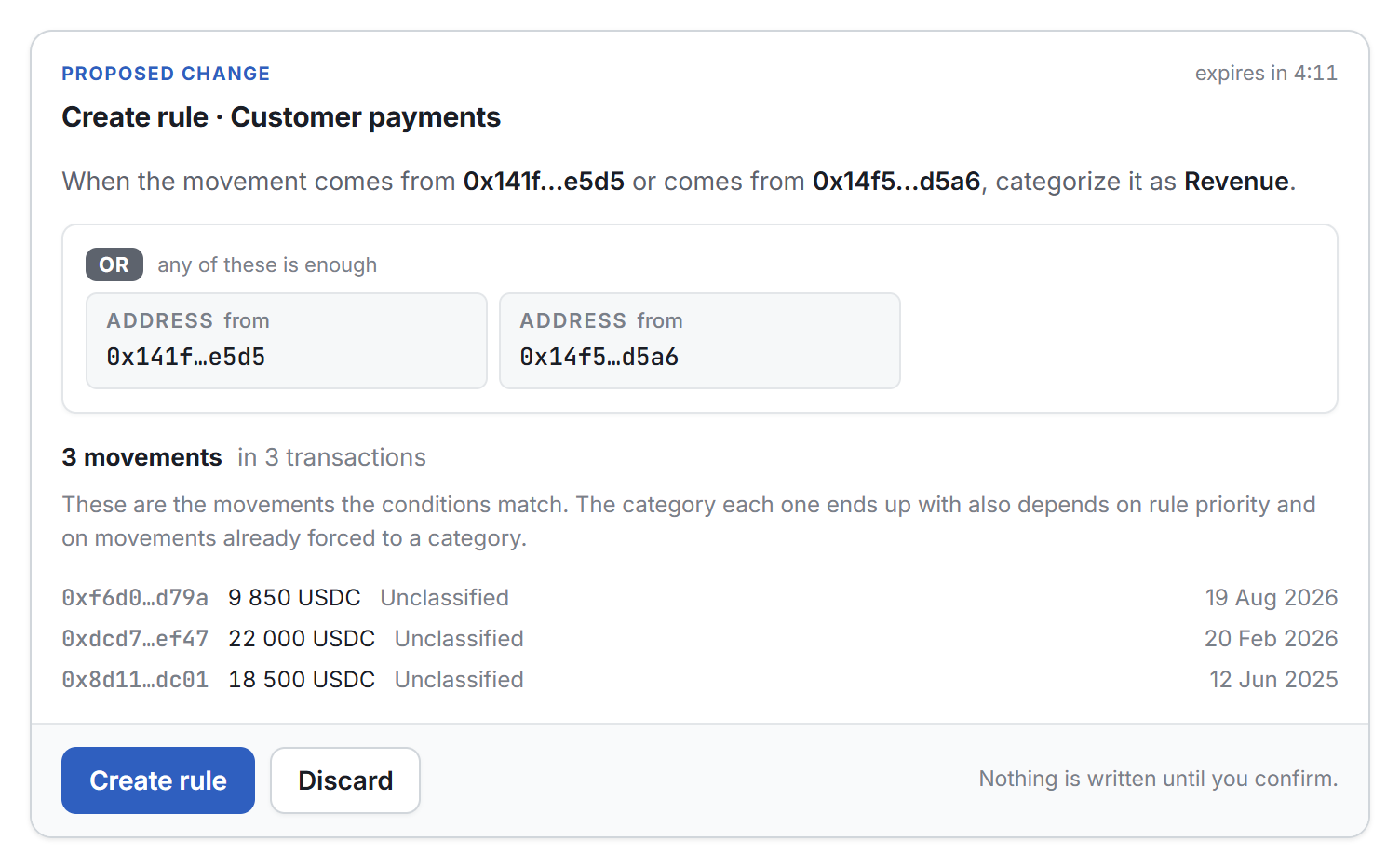
Each card shows:
- The kind of change at the top: Proposed change, or Proposed deletion for a rule deletion.
- The time left, for example "expires in 4:12".
- What changes. A rule shows the same way as on the Rules page, with its conditions. The card also counts the movements and the transactions the rule matches, and lists a few of them.
- A warning for a change that removes something, which says what is lost.
The figures on the card are measured on your books when ContaGPT prepares it.
Confirm or discard
- Read the card.
- Select the button that names the change, for example Create rule. To refuse, select Discard. On a deletion, the refuse button reads Keep the rule.
- If a second window opens, read it and select the same button again.
After the change runs, the card shows the result. When there is a page to see it on, the card links to it. The note Reported by Conta, not by the model. means that Conta Finance wrote the result, not ContaGPT.
A discarded card reads Proposal discarded. Nothing was written.
The second check
A second window asks you to confirm again when the change:
- removes something: a rule deletion, or an update that takes movements away from a rule, or
- touches more than 50 movements.
The window repeats the number in its title, for example "Delete 1 284 classified movements?". The card says One more confirmation to go. before you start. For a small change, the card says Nothing is written until you confirm.
When a proposal expires
A proposal holds for 5 minutes. After that, the card shows Expired and nothing was written.
To get a new card, select Prepare it again. ContaGPT measures your books again, so the new card shows up-to-date figures.
The limit exists because your books keep moving. An import or a new rule can change what a proposal touches.
A change an AI client prepared
An AI client you connected through MCP prepares the same changes. It gives you a link, and the link opens the same card on a page of its own. You confirm it or discard it there, and the client cannot confirm it for you. That proposal holds for 15 minutes. See Connect an AI client (MCP).
A confirmed change is a normal change
A change you confirm on a card runs through the same checks as the same change made on its page. For example, a rule created from a card is a normal rule on the Rules page. To change it later, see Pause, edit and delete rules.