Add a transaction
Enter a transaction by hand, add a missing movement to one the ledger already has, and delete what you entered.
Where to find it:your-organization.conta.financeTransactionsAdd transaction
Most transactions arrive by themselves from your accounts. Enter one by hand when it happened somewhere Conta Finance does not read, or when a transaction arrived with a movement missing.
Add transaction or Add movement
| Add transaction | Add movement | |
|---|---|---|
| Use it to | Enter a new transaction. | Add a missing movement to a transaction the ledger already has. |
| Where | The header of the Transactions page. | The selection bar, with movements of one transaction selected. |
| Hash, platform, date and block | You enter them. | They are the transaction's. You cannot change them. |
Add movement never changes the movements that are already there. Your movement goes beside them, under the same hash.
Enter a new transaction
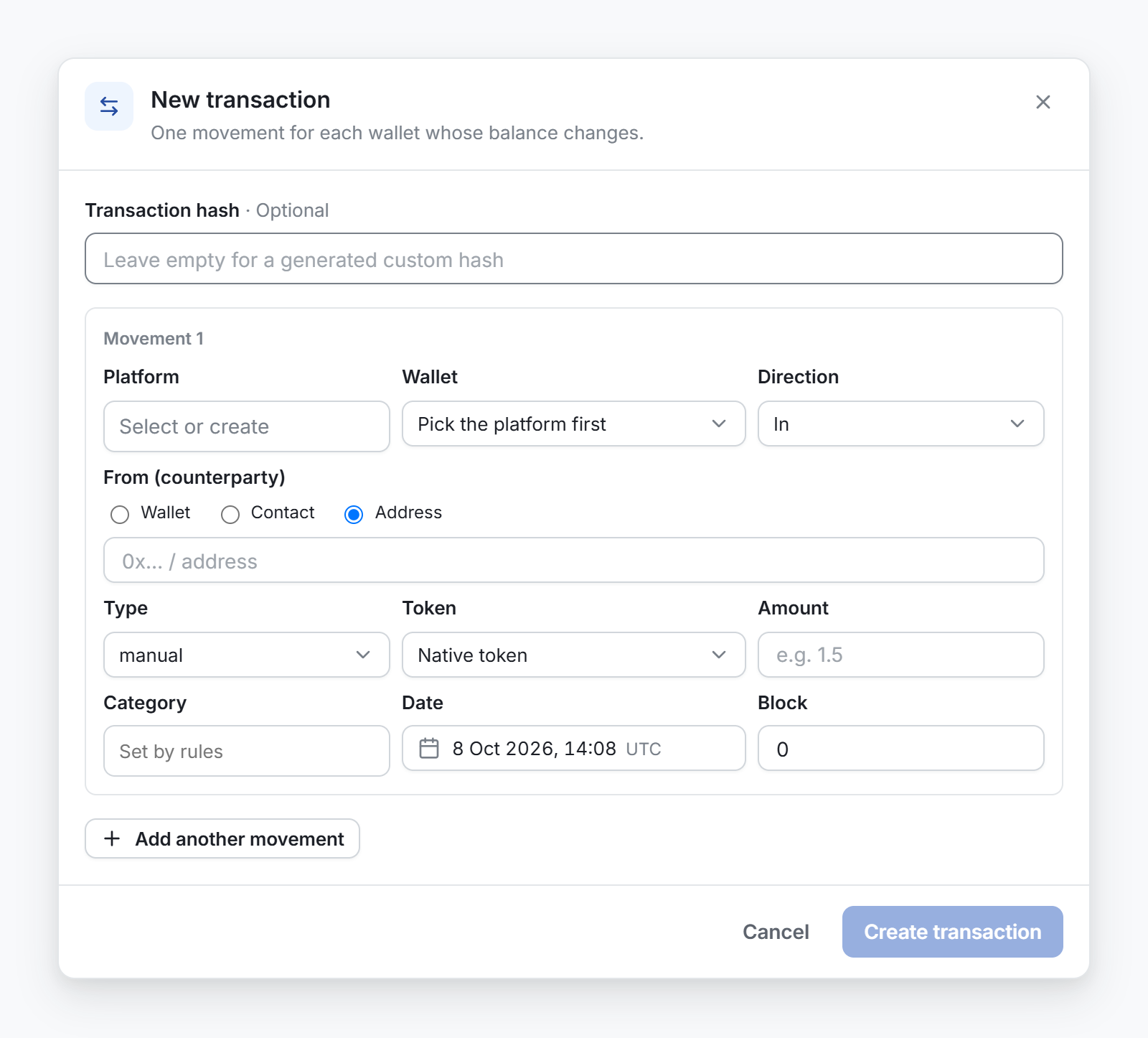
- Open Transactions in the sidebar and select Add transaction.
- Fill in the first movement. The fields are in the table below.
- To add another movement to the same transaction, select Add another movement. To remove one, select the cross at the top right of that movement.
- Select Add transaction.
The window then says the transaction is added and the balances it moves are up to date. Select Done.
The fields
| Field | What to enter |
|---|---|
| Transaction hash | Optional. The hash, if the transaction has one. See The hash. |
| Platform | The blockchain or exchange. If it is not in the list, type its name to create it. |
| Wallet | The account the movement belongs to. Choose Another address for an address you do not track yet, and type it in Wallet address. It is added to your accounts when you save. |
| Direction | In if the account received, Out if it sent. |
| From (counterparty) or To (counterparty) | The other side. Pick one of your accounts, a contact, or type an address. |
| Type | The kind of movement. The list depends on the platform. Choose gas for a transaction fee. |
| Token | The asset. Choose Custom address for a token that is not in the list, then fill in Token address, Symbol and Decimals. |
| Amount | How much moved, as a positive number. The direction gives the sign. |
| Category | Optional. Leave it empty to let your rules decide. A category you type here is set by hand on this movement. |
| Date | The date and time in UTC. It cannot be in the future. |
| Block | The block number on a blockchain. An exchange has no blocks, so the field does not show for one. |
When the type is gas, the Category field reads Gas is always Fee. You cannot choose another category for gas.
The hash
All the movements you enter in one window share one hash, so they are one transaction.
- If the transaction is on a blockchain, enter its hash. Then the row has the same hash as on the explorer.
- If it has no hash, leave the field empty. Conta Finance generates one that starts with
custom-, which shows that you entered it by hand.
To add a movement to a transaction that is already in the ledger, use Add movement instead.
Add a movement to an existing transaction
- Expand the transaction and select one of its movements.
- In the selection bar, select Add movement.
- Check the transaction at the top of the window: its hash, platform, block and time.
- Fill in the account, the direction, the counterparty, the type, the token and the amount.
- Select Add movement.
Add movement is available only when the selected movements belong to one transaction.
Dates in a closed period
When a period is closed through a day, adding a movement on or before that day asks first. The window This date is in a closed period opens once for the whole transaction. Select Add anyway to add it, or close the window to stop. See Close a period.
Delete what you entered
You can delete only the transactions you entered by hand. Conta Finance reads every other transaction again from its platform, so a deleted one would come back.
- Select the movements of the transaction you entered.
- Select Delete in the selection bar.
- Read the message, then select Delete transaction, or Delete transactions when you selected more than one movement.
Deleting removes the whole transaction: its movements, the balances it moved and the categories set on it. A transaction between two of your accounts is deleted on both sides. It cannot be undone. To bring it back, enter it again.
If the selection mixes movements you entered and movements that arrived by themselves, Delete is not available. A delete on a day in a closed period asks first too.