Link transactions
Make movements of different transactions share one category, and change or delete the link later.
Where to find it:your-organization.conta.financeTransactionsLink
A transaction link groups movementsOne asset going into or out of one of your accounts. A transaction has one movement per account and asset. of different transactions, so that they share one categoryThe accounting label of a movement, such as Purchase or Fee. Cost basis reads it.. The link sets that category by hand on each member. It overrides every rule, and it changes on all members at once.
When to use a link
Use a link when one operation is split over more than one transaction, and every part must carry the same category. For example:
- A trade paid in one transaction and delivered in another.
- A loan, with the amount received in one transaction and paid back in another.
- A payment sent in parts.
If the same kind of movement comes back every week, a rule is better. See Create a rule.
Create a link
- Open Transactions in the sidebar.
- Select the movements. Tick a row to take every movement of its transaction, or expand the row and tick one movement.
- In the selection bar, select Link.
- In Shared category, pick the category.
- Check the Members list.
- Select Save.
Each linked transaction now shows the link mark after its method. The category tooltip of each member reads "Set by hand through this movement's transaction link".
If you leave Shared category empty, the link only groups the movements. Each member keeps the category its rules give it.
Change a link
- Select the link mark of any member. The mark also shows in the expanded movements.
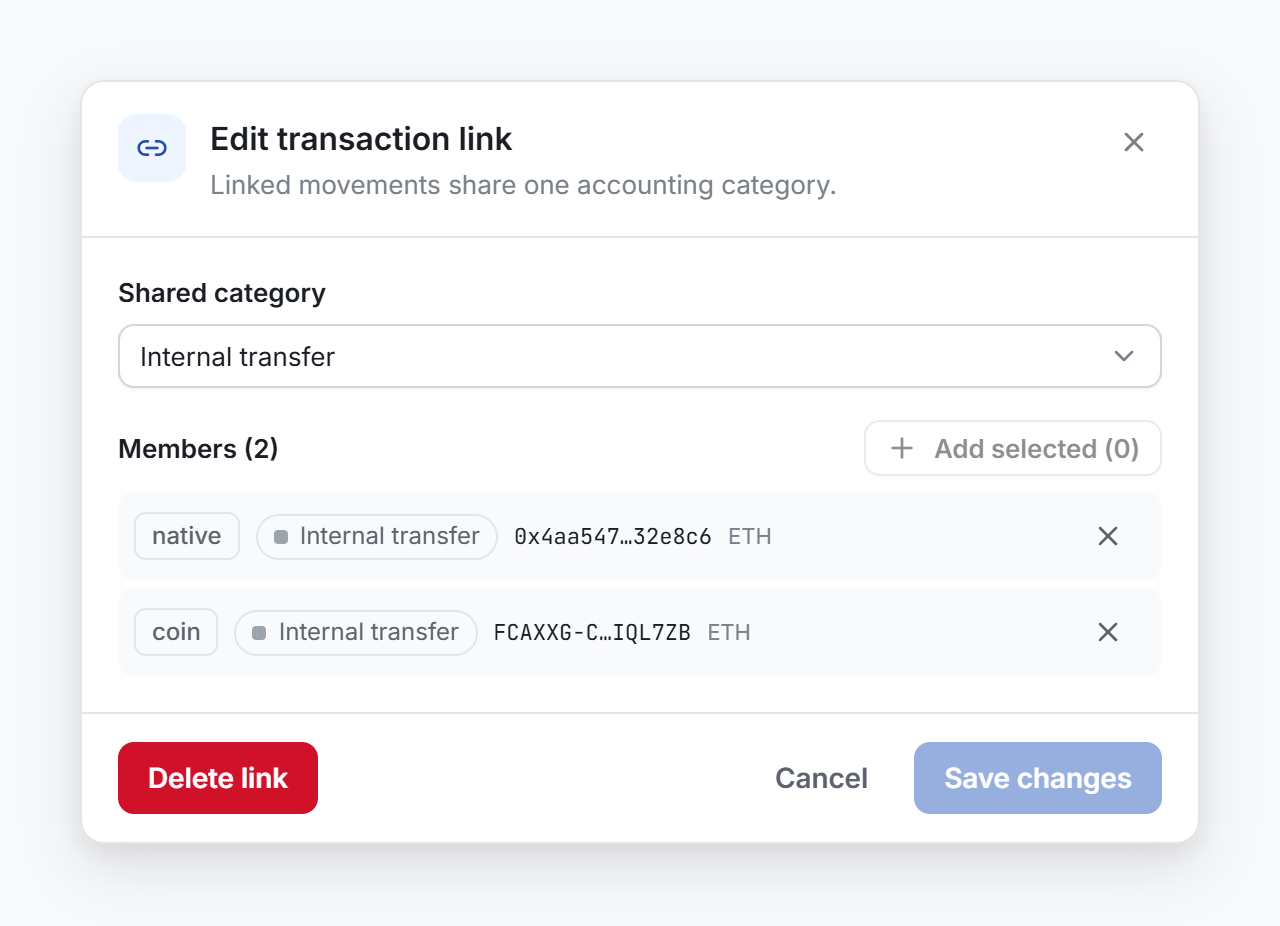
- In the Transaction link window, make the change.
- Select Save.
Nothing changes until you select Save. Cancel drops your changes.
- Change the category. Pick another one in Shared category. Every member takes it.
- Add members. Close the window, select the new movements in the table, then open the link again. Add selected shows how many selected movements are not in the link yet. Select it.
- Remove a member. Select the cross at the end of its line. The removed movement goes back to the rules.
If you remove every member and save, the link is deleted.
A member that reads "Movement no longer in projected history" is no longer in the ledger, for example because a hand-entered transaction was deleted. Remove it from the link.
Delete a link
Open the link and select Delete link. Nothing asks you to confirm. Every member goes back to the rules, and the link mark leaves the rows.
What a link changes
A link changes the category of its members, and nothing else.
- The category. Remove category in the selection bar skips a linked movement, because the link owns its category. Change it from the link.
- The subcategory. A link does not share a subcategoryA second, free label for your own analysis. It changes no figure.. Each member keeps its own.
- Cost basis. Cost basis reads the category only to find internal transfersAn asset moving between two of your accounts. It is not a disposal, so no lot is consumed.. A link with the Internal transfer category takes every member out of cost basis. A link with any other category changes no cost basis figure. See Internal transfers.
- The ERP. The ERP posts each member to the account mapped to the shared category. See Map categories to accounts.