Import a ledger
Bring movements in from another accounting product, from the Conta Finance template or from transaction hashes, one decision per screen.
Where to find it:your-organization.conta.financeTransactionsImport ledger
The import wizard brings a history of movements into your ledger. Use it to move from another accounting product, to load a period your accounts do not cover, or to read a few transactions straight from their blockchain.
The wizard asks one thing on each screen. Its rail shows where you are: Source, Settings, Platforms, Categories, Assets, Accounts and Review.
Open the wizard
- Open Transactions in the sidebar.
- Select Import ledger in the header.
The wizard opens only from the Transactions page, not from the page of one account.
1. Source
Choose where the movements come from. Each source is a card:
| Source | What you give it |
|---|---|
| An accounting product | The ledger export of that product, as a file. The card names the product and the file it reads. |
| Template | The Conta Finance spreadsheet, filled in, as .csv or .xlsx. |
| Transaction hashes | Hashes you paste, for each blockchain. |
When only one source is available, it is already chosen.
A file
Drop the file on the box, or select the box to choose it. Then select Read the file. To pick another file first, select Choose another.
A file can be up to 20 MB, 200 000 rows and 2 million cells (rows multiplied by columns). To import a larger export, export it again by period and import each part.
An Excel file must also have nothing below row 200 000 or to the right of column IV. An empty row or cell that only has formatting counts too, and the message then names the row or the column. Delete the rows below your data and the columns to the right of it, save the file and import it again.
The template
When you choose Template, a Start from the template panel shows above the box.
- Select Download template.
- Fill in one row for each movement. Rows that share a transaction hash are one transaction.
- Drop the filled template on the box and select Read the file.
Select What goes in each column to see what each column needs. These columns are required: Transaction Hash, Timestamp (UTC), Platform, Account Address, Direction, Amount, Asset Symbol, Asset Address, and Counterparty Address except on a fee row. The others are optional.
Transaction hashes
- Select the blockchain the transactions are on. Only the blockchains Conta Finance can read show.
- Paste the hashes in its box, one for each line. Under the box, a count shows how many it found.
- Add another blockchain if you need one.
- Select Read with the number of transactions.
One import reads up to 25 transactions, and each one takes a few seconds. For more, import these, then run the wizard again. A hash that could not be read is listed on the next screen, with the reason. The others continue.
2. Settings
The screen first shows what the source holds: the transactions, the movements, the platforms and activities to map, and the accounts and assets it names. If a number looks wrong, you have the wrong file. Go Back now, before you map anything.
Then choose how to import:
- Use the prices in the file is on by default. The file states what one unit was worth at each movement, and the import keeps those prices. Clear it to let your own price sources value every imported movement. A blockchain states no price, so this choice does not show for transaction hashes.
- Replace transactions the ledger already has is off by default, so the import adds only what is new. Running the same import twice then writes nothing twice. Tick it only when the file holds more movements for a transaction than your ledger does. The import then erases the stored movements of that transaction and writes the file's.
3. Platforms
Map each platform the source names to a Conta Finance platformWhere an asset lives: a blockchain or an exchange.: a blockchain or an exchange.
- For each platform, open Choose a platform and select one.
- If the platform is not in the list, type its name and select Create. A platform you create works like any other, but Conta Finance does not read new transactions from it.
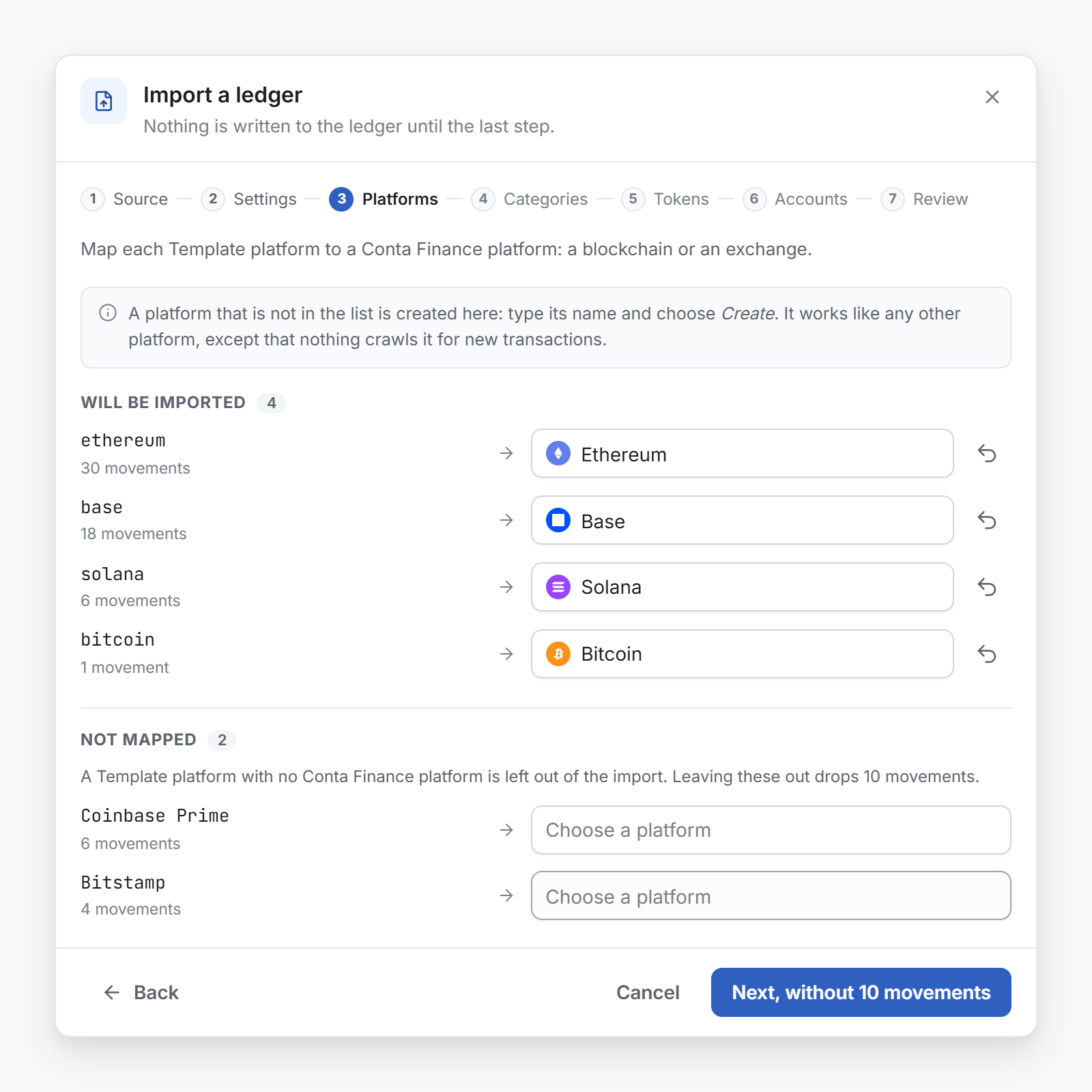
A mapped platform moves up to Will be imported. A platform in Not mapped is left out of the import, with all its movements. The block says how many movements that drops, and the button reads Next, without and that number. To leave a mapped platform out, select its undo button.
4. Categories
Say which categoryThe accounting label of a movement, such as Purchase or Fee. Cost basis reads it. each activity in the file becomes.
- Type or pick a category. A name that does not exist yet is created.
- Leave the field empty to let your rules decide.
A category chosen here is set by hand on the transaction, so it overrides what the rules decide. It does not change what the cost basis counts.
5. Assets
This screen lists the assets the import moves that are not in your token catalog. If every asset is known, there is nothing to do.
You can skip this screen. The import then adds each asset with a number of decimals guessed from the file. A wrong number of decimals puts the imported amounts on another scale than the ones Conta Finance reads later. So check every asset with a warning icon beside its decimals.
- Select Import token on the asset.
- Check Decimals. Try to autocomplete fills the details from the public registries. It fills the form and saves nothing.
- If you already hold the same token on another platform, choose it in Same token as. Then both read the same price, symbol and name. By default it reads None (priced on its own contract).
- To save the file's prices for this asset, keep the box that reads Store the prices the file states for it ticked. It shows only when the file has prices for the asset and Use the prices in the file is on.
- Select Create token.
A saved asset shows Saved for the rest of the import.
A shield icon marks an asset the file never priced. That is how an airdropped spam token usually looks. To drop an asset, select its cross. It moves to Discarded, where Restore brings it back. A discarded asset gets no catalog entry, but its movements still import.
6. Accounts
This screen lists every account the source names. Beside each one, a line says what your ledger already has:
| Line | Meaning |
|---|---|
| Already yours | You track this address on this blockchain. Nothing is created. Choose to keep your name or use the imported one. |
| Yours on and a platform | You track this address on another blockchain. Saving adds this blockchain to the same account. |
| New account | The address is new. Give it a name now. |
For an exchange account, choose the account you already connected, or Create a new account.
For each account, choose what to do with it:
- Track as a wallet: it becomes one of your accounts, and its movements are imported.
- Save as a contact: it becomes a named contactAn address you named that belongs to someone else, such as a supplier., and its movements are not imported.
- Leave out: its movements are not imported.
The accounts are in two blocks, Will be tracked and Left out. Use Track all or Leave all out to move a whole block. The Left out block says how many movements it drops.
With transaction hashes, a new address starts as a contact, because the other side is usually a contract or a stranger. To import the history of an account you do not track yet, set it to Track as a wallet.
Select Create accounts and continue, or Next when there is no account to create. A new account is watched for new transactions only on a platform Conta Finance reads. It continues after the blocks this import holds, and nothing is read again from the start.
When an account is refused
An account can be refused, for example when its address does not fit the blockchain. The screen shows each refused account with three ways out:
- Edit platform mapping: the platform was mapped to the wrong blockchain.
- Edit address format: the blockchain's address format is too strict.
- Change account address: the file has a wrong address. Type the right one and select Use address.
You can also select Continue anyway. The movements of the refused accounts are then not written.
7. Review
This is the last step before anything is stored. Check the four numbers: Transactions to import, Movements to write, Already in the ledger and Tokens to catalogue. Notes under them explain each movement that does not come in: a platform left out, an account not tracked, a transaction the ledger already has.
Then select Import with the number of transactions. Do not close the window while it writes.
Dates in a closed period
When a period is closed, the Review screen says how many movements are dated on or before the closing date. Importing them changes balances that were already closed, so Import asks you to confirm first. Select Continue to import, or close the question to stop. Nothing is written until you confirm. See Close a period.
Done
The last screen says how many movements are in the ledger. They read like any other movement: your rules classify them and the cost basis counts them. Notes explain the rest:
- rows that described the same movement as another row, and were added into it;
- amounts finer than the asset's smallest unit, cut to it;
- rows that could not be written, with the reason.
Select Done. The ledger can then rebuild for some minutes. When it is finished, a line above the Transactions page reads State recalculated successfully.
If an asset got its decimals from the file, check it on the Tokens page.
Leave the wizard before the end
Close the wizard at any time. After the file is read, closing asks first, because your mapping work is lost: the platforms, categories, assets and accounts you answered. Select Leave and lose it to close. To start again, read the file again.
Nothing was written to the ledger. The platforms, categories, assets and accounts you created along the way stay.