Export data
Download what a page shows as an Excel workbook or as CSV files, and know what each file holds.
Where to find it:your-organization.conta.financeAny pageExport
Most pages of Conta Finance have an Export button in the header. It writes the data of the page to a file on your computer, at once. The file holds raw values, so a spreadsheet can add them up and filter them.
Export a page
- Open the page and set the filters you want.
- Select Export.
- Select Excel (.xlsx) or CSV.
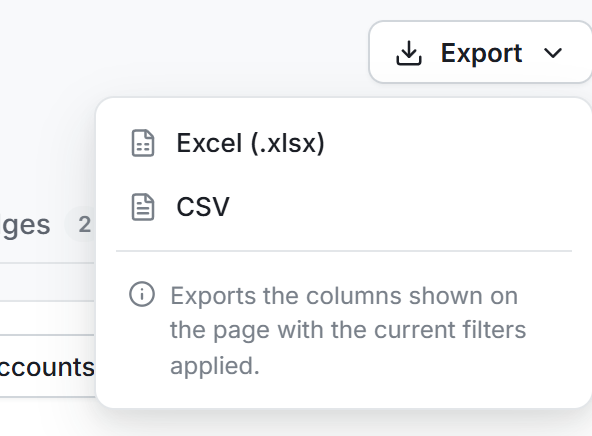
The note under the two formats says what the file holds. A CSV file writes decimals with the decimal separator of the number format in Organization settings.
If no row matches the filters, the app says "Nothing to export with the current filters." and writes no file.
Excel or CSV
| Excel (.xlsx) | CSV | |
|---|---|---|
| Tables | One workbook, with one sheet for each table. | One file for each table. |
| Numbers and dates | Real number and date cells. | Text with the decimal separator of your number format. |
| Number format | Does not apply. Excel shows the numbers in its own format. | Sets the decimal separator and the delimiter. |
The CSV delimiter follows the decimal separator of the number format:
| Number format | A number in the file | Between fields |
|---|---|---|
| 1 234.56 | 1234.56 | , (comma) |
| 1 234,56 | 1234,56 | ; (semicolon) |
| 1,234.56 | 1234.56 | , (comma) |
| 1.234,56 | 1234,56 | ; (semicolon) |
A file never groups the thousands, with every number format, and keeps every decimal. See How numbers are written.
A spreadsheet reads text that starts with =, +, - or @ as a formula. In a CSV file, Conta puts an apostrophe before such text, for example a token symbol or a contact name, so the spreadsheet shows it as text. A number keeps its sign and gets no apostrophe. The Excel file needs no apostrophe.
In every file:
- A value in money is in your reporting currencyThe currency of every balance, valuation and report: USD, EUR or GBP. You choose it in Organization settings.. The code is in the header, for example
Value (USD). - A ticker is in capitals. A contract address stays as it is.
- An empty cell means the value is not known, for example a token with no price.
What each page exports
| Page | What the file holds |
|---|---|
| Transactions | Every transaction that matches the filters, not only the page on screen, with one line for each movement. |
| An account, Transactions tab | The same, for that account only. |
| An account, Manage menu | Export as Excel and Export as CSV write a Summary table and the Holdings of the account. |
| Gains & losses | The whole report: a Report sheet, then All tokens, Realized, Unrealized and Needs attention, with every column. |
| A token gains and losses report | A Report sheet, then every disposal and every acquisition lot, with the filters applied. |
| Accounts | The tab that is open: own accounts, contacts or unidentified addresses. |
| Tokens, Positions | The rows of the page, with its filters. |
| Reconciliation | The tokens and the discrepancies. On the History tab, the days and the discrepancies. |
| ERP, sync | The whole date range: a summary by account, and every line before and after the sync. |
The Transactions file
The Transactions export reads every page of the filtered ledger before it writes the file. A large ledger can take some seconds. The button shows a spinner meanwhile.
The columns are: Date (UTC), Platform, Wallet, Wallet address, Direction, Type, Method, Token, Token address, Amount, Price, Value, Category, From, From name, To, To name and Transaction hash. The file has no subcategory, review mark or comment.
An amount or a value out is negative, so each column adds up. In a CSV file, the date reads 2026-10-03 14:05:00, in UTC.
The Gains & losses file
The Gains & losses export writes the whole report for the as-of date, accounts and platforms you selected. It does not follow the tab on screen, the hidden columns, the search or the value filter.
The Report sheet says what the figures cover: the fiscal year of the realized figures, the as-of date, the currency, the cost basis method and the number of accounts. A realized figure belongs to one fiscal year, so keep this sheet with the numbers.
File names
A file name reads <organization>-<page>-<date>.<ext>, for example conta-demo-transactions-2026-10-03.xlsx.
- The organization name is in lowercase, with hyphens.
- The date is the day on your computer's clock.
- When a CSV export has more than one table, each file ends with the name of its table, for example
conta-demo-gains-losses-2026-10-03-all-tokens.csv. - A saved reportA copy of the gains and losses figures, stored under a name. Nothing calculates it again, so it never changes. puts its own name after
gains-losses-.