Sign in and open an organization
Sign in at accounts.conta.finance, open an organization, and move from one organization to another.
Where to find it:accounts.conta.financeSign in
Access to Conta Finance is by invitationAn email link that lets a person join a team, with a role and an access. It works for 7 days.. If you have no access yet, ask the administrator of your team to invite you. See Invite a user.
You sign in once, at accounts.conta.finance. From there you open each organizationOne company with its own books, its own data and its own address. you have access to.
Sign in
The sign-in page shows the methods your account can use.
- Continue with Microsoft or Continue with Google: you sign in with that account, and come back to Conta Finance.
- Email me a code: Conta Finance sends a code of 8 digits to your email address, and you type it on the sign-in page.
Some Microsoft and Google accounts cannot sign in on their own, because the provider does not prove that the email address belongs to the person. A personal Microsoft account and a personal Google account on a company address are two examples. To use one of them, sign in with a code by email first. Then select Link Microsoft or Link Google on the Security page of your account. After that, the account signs in on its own.
Sign in with a code by email
- Go to accounts.conta.finance.
- In Email, type your email address.
- Select Email me a code. The page asks for the code.
- Open the email. You can read it on any device.
- In Code from the email, type the 8 digits. Conta Finance signs you in after the last digit.
The code works once, for 10 minutes, and only in the browser where you asked for it. The email has no link to open.
If you type a wrong code, type it again. After five wrong codes, the code stops working. Then select Send it again to get a new one.
If the email does not arrive in a minute, look in your spam folder. To get a new code, select Send it again. If you have more than one email, use the newest one.
Type the code of your authenticator app
If two-factor authentication is on for your account, Conta Finance asks for a code after the sign-in.
- Open your authenticator app.
- In Code, type the 6-digit code.
- Select Verify.
If you do not have your app, select Use a recovery code. See Turn on two-factor authentication.
Open an organization
After the sign-in, you land on the page of your teamA group of people who work on a set of organizations together, such as a finance team or an accounting firm.. The Organizations tab lists the organizations you can open, with your access to each one.
- Find the row of the organization.
- Select its name. The organization opens in a new tab.
You can also select the name of the organization. It also opens in a new tab.
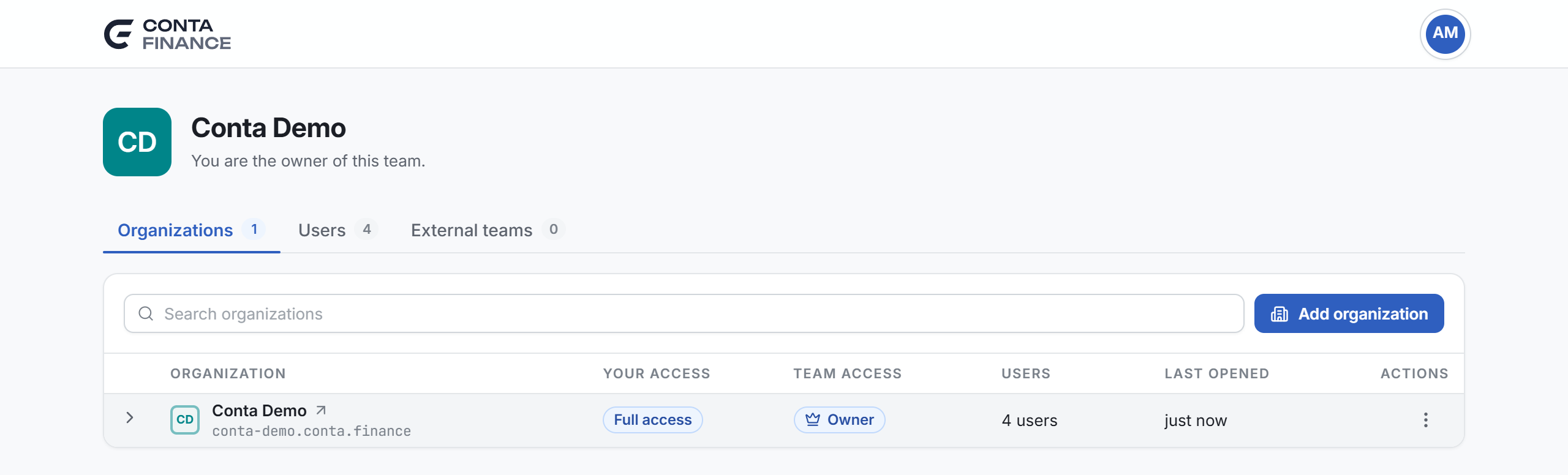
If an organization is not in the list, you do not have access to it. Ask the owner or an admin of your team. See Roles and access levels.
Switch to another organization
- Open the organization menu at the top of the sidebar.
- Under Switch organization, select the organization.
The list shows only when you can open more than one organization. It shows your access next to each one, and a check next to the one that is open.
To go back to the page of your team, select Team and organizations in the same menu. It opens in a new tab.
Your personal settings
Select your picture at the top right of the app, then Personal settings. Your name, your photo, your sign-in methods and two-factor authentication are there. They are the same in every organization. The page opens in a new tab.
Sign out
Select your picture at the top right of the app, then Sign out of and the name of the organization. You sign out of that organization only.
To sign out of accounts.conta.finance, select your picture at the top right of that site, then Sign out.
To sign out on every device, open Security and sessions from the same menu and select Sign out everywhere. Every sessionThe sign-in of one browser. It ends after 12 hours with no use, or 30 days after the sign-in. of yours ends, and every organization you have open signs you out within 5 minutes.