Turn on two-factor authentication
Ask for a code from an authenticator app after every sign-in, keep your recovery codes, and require it for a whole team.
Where to find it:accounts.conta.financeYour accountSecurity and sessions
With two-factor authentication on, Conta Finance asks for a code from an authenticator app after every sign-in: with a code by email, Microsoft or Google alike. You turn it on for your own account. It then applies in every organization you open.
Before you start
Install an authenticator app on your phone, such as Microsoft Authenticator, Google Authenticator, Ente Auth or Bitwarden.
Turn it on
- Go to accounts.conta.finance.
- Select your picture at the top right, then Security and sessions.
- In Two-factor authentication, select Turn on.
- Select Continue. If Conta Finance asks you to confirm it is you, do it.
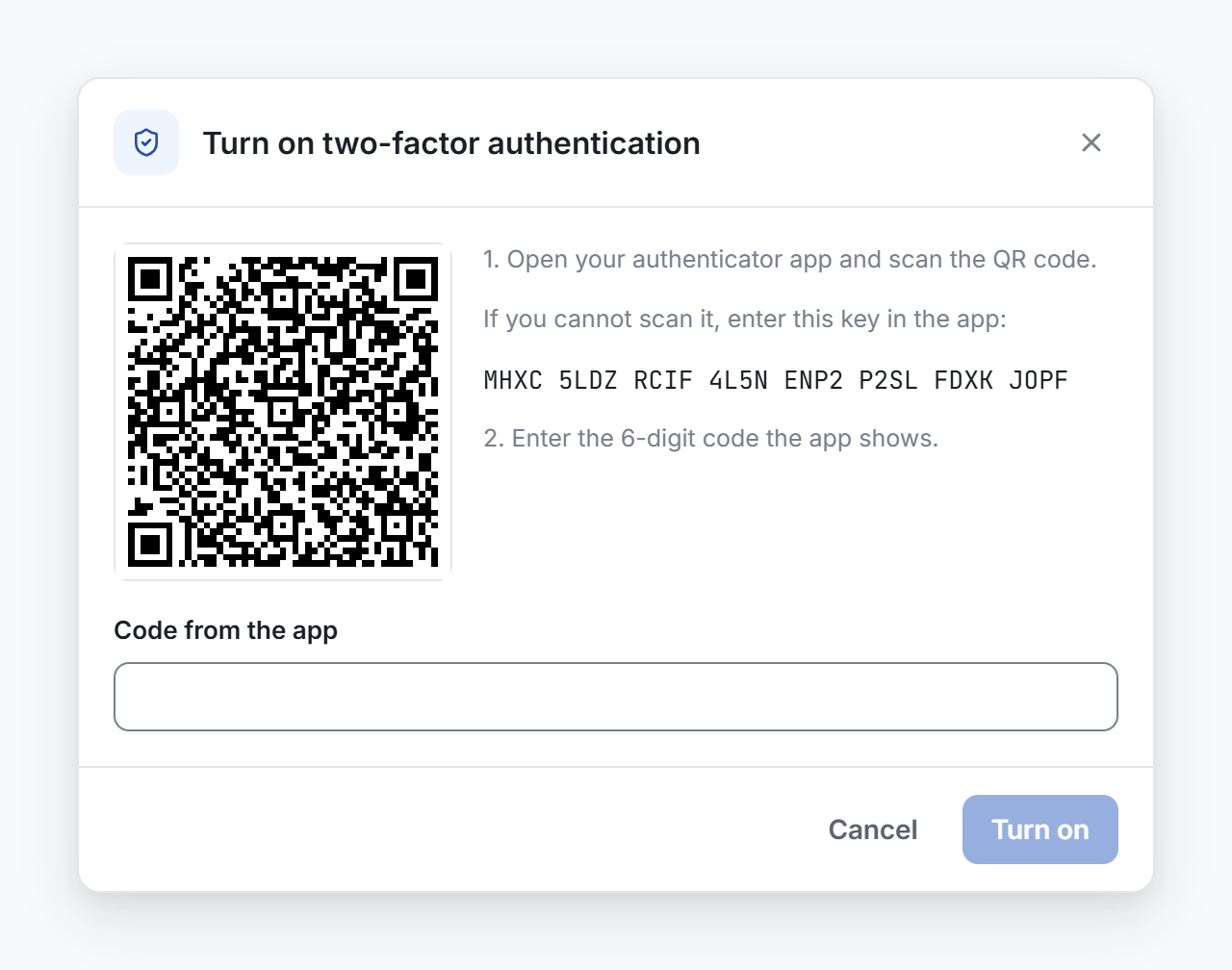
- In your authenticator app, scan the QR code. If you cannot scan it, type the key shown under it in the app.
- In Code from the app, type the 6-digit code the app shows.
- Select Turn on.
Your other sessionsThe sign-in of one browser. It ends after 12 hours with no use, or 30 days after the sign-in. end. Sign in there again with a code. Your AI client connections stay. To end one, see Connect an AI client.
Save your recovery codes
When you turn it on, Conta Finance shows 10 recovery codes. Each code signs you in once, if you lose access to your authenticator app.
- Select Copy or Download.
- Keep the codes in a safe place, such as a password manager.
- Select I saved my recovery codes.
To sign in with a recovery code, select Use a recovery code on the code page. After the sign-in, Conta Finance tells you how many codes are left.
Make new recovery codes
If you have 3 codes or fewer, the Security page asks you to make new ones.
- In Two-factor authentication, select New recovery codes.
- Type the code from your authenticator app.
- Select Make new codes.
- Save the 10 new codes, then select I saved my recovery codes.
Your old recovery codes stop working.
Turn it off
- In Two-factor authentication, select Turn off.
- Type a code from your app, or a recovery code.
- Select Turn off.
Your recovery codes stop working. If your team requires two-factor authentication, you cannot open its organizations until you turn it on again. The ones you have open close within 5 minutes.
Require it for a team
The owner and the admins of a team can require two-factor authentication of everyone in it.
- On the page of your team, open the Users tab.
- Turn on the Require two-factor authentication switch.
- Read the list of people who do not have it yet.
- Select Require it.
After that:
- Nobody in the team opens its organizations without it. This includes the owner and the admins.
- A person without it opens no organization of the team until they turn it on. The organizations they have open close within 5 minutes.
- Each page of accounts.conta.finance shows that person a notice with Turn it on.
- The 2FA column of the Users tab shows who has it on.
To stop, turn off the switch and select Stop requiring it. The people who have it on keep it.
If you lose your authenticator app
Sign in with a recovery code. Then turn two-factor authentication off and on again, with an app you can open.
If you have no recovery code left, write to support at [email protected] from the email address of your account, or ask the administrator of your team to contact support. Support checks who you are, turns off two-factor authentication for your account and signs you out everywhere. Your AI client connections stay. Then you turn it on again with an authenticator app you can open.