Invite a user
Invite a person to your team, set their role and their access to each organization, and manage the invitations that wait.
Where to find it:accounts.conta.financeTeamUsersInvite a user
A person gets access to Conta Finance only by an invitation to a teamA group of people who work on a set of organizations together, such as a finance team or an accounting firm.. The invitation sets their role and their access to each organization of the team. They get both when they accept.
Before you start
- You must be the owner or an admin of the team. The owner invites admins and members. An admin invites members only.
- To open the page of your team from an organization, open the organization menu at the top of the sidebar and select Team and organizations.
Invite a user
- On the page of your team, open the Users tab.
- Select Invite a user.
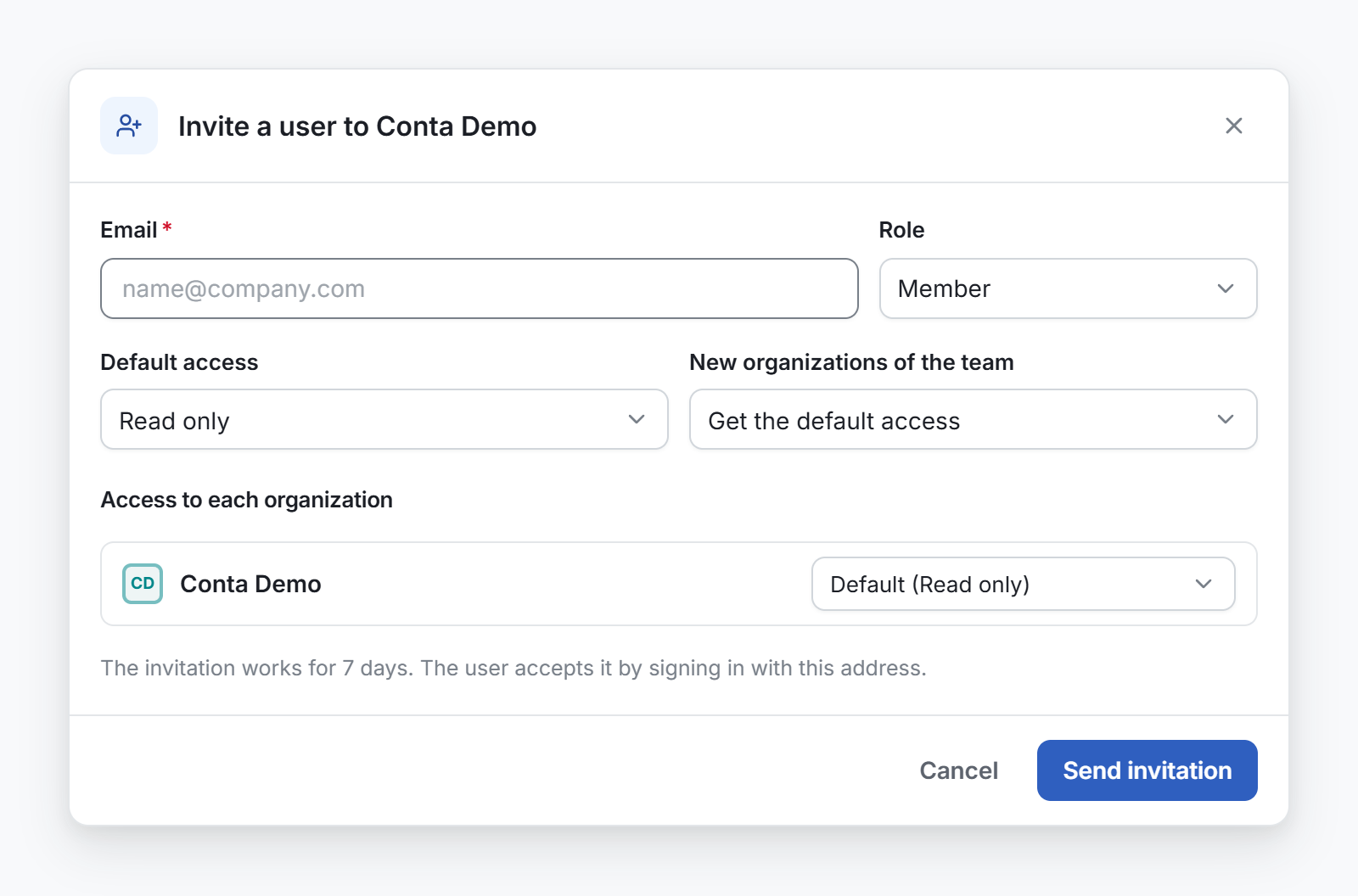
- In Email, type the email address of the person.
- In Role, select Member or Admin.
- For a member, set the access (see below).
- Select Send invitation.
The person gets an email with a link. The invitation works for 7 days.
The access of a member
| Field | What it sets |
|---|---|
| Default access | Read and edit or Read only. An organization set to Default gives this level. |
| New organizations of the team | Get the default access, or No access until someone gives it. |
| Access to each organization | One line per organization of the team: Default, Read and edit, Read only or No access. |
Where the team itself has Read only access, Read and edit cannot be picked, and the line says why. See Roles and access levels.
The access of an admin
An admin has no access fields. An admin opens every organization of the team with the access of the team, and manages the members.
What the invited person sees
The link opens a page that shows the team, the role, who invited them, and the day the invitation stops working.
- The person signs in with the invited email address: with Microsoft, with Google, or with Email me a code.
- The person selects Join and the name of the team.
The page of the team then opens. If the person is signed in with another email address, the page asks them to sign out first.
Pending invitations
The invitations that wait show under the list of users, in Pending invitations. Each one shows the email, the role, who invited, and when it expires.
- To send a new link, select Resend. Use it also for an invitation marked Expired.
- To cancel an invitation, select Revoke, then Revoke invitation. The link in the email stops working at once. You can invite the same address again later.
An admin can resend and revoke the invitations of members only.
Change or remove the access later
In the Users tab, open the menu of the person.
- To change the access of a member, select Edit access.
- To remove the person from the team, select Remove from the team. They lose access to the organizations of the team within 5 minutes. To come back, they need a new invitation.