Saved reports
Keep a copy of the gains and losses figures that never changes, and open it later exactly as you saved it.
Where to find it:your-organization.conta.financeGains & lossesSaved reports
The Gains & losses page calculates its figures again each time you open it. A new rule, a price added later or a late import can change a figure you already reported. A saved report stops that: it stores the figures on screen under a name, and nothing calculates them again.
Save a report
- Open Gains & losses in the sidebar.
- Set the As-of date, the Accounts and the Platforms the report must cover.
- Select Save report in the header.
- In Report name, type a name, for example "FY2025 close". When an as-of date is set, the name starts as "Gains & losses to" and that day.
- Select Save report.
The window says what it is about to store: the number of assets, the day it reads up to, the method and the currency. The page then opens the saved report.
Choose the name with care. You cannot rename a saved report.
What a saved report holds
- Every asset of the report, with every figure on every tab.
- Every disposal of every token, so each token report opens from the copy too.
- The scope: the as-of date, and the accounts and platforms you filtered by.
The search and the value filter only narrow what you see. They do not limit what is saved.
The Saved reports page
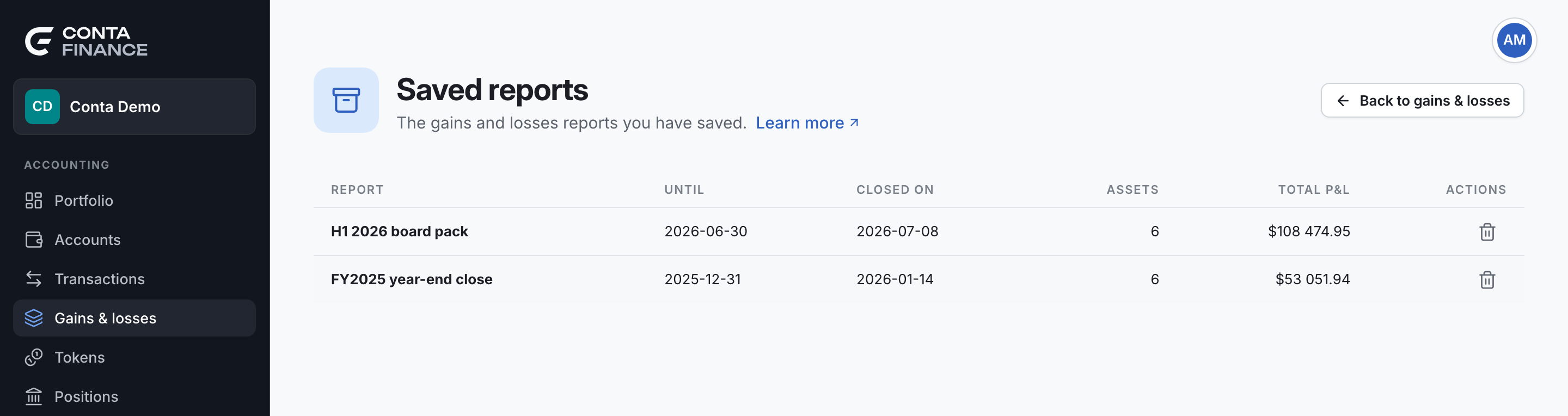
Select Saved reports in the header of the Gains & losses page.
| Column | What it shows |
|---|---|
| Report | The name of the report. |
| Until | The as-of date of the report. The last movement when no as-of date was set. |
| Closed on | The day the report was saved, in UTC. |
| Assets | The number of assets in the report. |
| Total P&L | Realized plus unrealized, in the currency of the report. |
| Actions | The delete button. |
The list starts with the newest report. Select Back to gains & losses to return to the live figures.
Open a saved report
Select a row. The report opens on the same page as the live figures, with a banner at the top. The banner names the report, the day it reads Until, the Fiscal year of its realized figures, and when it was Created at, in UTC.
A saved report is read only:
- The as-of date, the accounts and the platforms are fixed. Their filters are not in the toolbar.
- Save report, Saved reports and Close period are not in the header.
- The search, the value filter, the tabs, the sort and the columns still work. They only change how you read the stored rows.
- A token opens its stored report, and its back link returns to the saved report.
- Export in the header of the report writes the stored figures. See Export data.
To leave the report, select the arrow at the start of the banner. It goes back to the Saved reports page.
Delete a saved report
You need full access to the organization to delete a saved report. Without it, the row shows no Delete this report button.
- On the Saved reports page, select Delete this report in the row.
- In Delete this report?, confirm.
The report and its figures are removed for good. The live figures do not change.
A saved report does not close the period
Saving a report keeps the figures. It does not lock the days: imports and edits still change the live figures. To lock the days of a period you signed off, close it. See Close a period.
At the end of a fiscal year, most teams save the report first, then close the period.