Confirm it is you
Why some actions ask for a recent sign-in, how the check works for each sign-in method, and what happens after it.
Where to find it:accounts.conta.finance
Some actions at accounts.conta.finance are hard to undo, or they lock people out. For these actions, Conta Finance asks for a proof of who you are from the last 5 minutes. If your proof is older, the Confirm it is you window opens. You confirm, and the action continues by itself, with the same values.
This protects you if someone else uses a browser where you are still signed in.
The actions that ask for it
| Action | Where |
|---|---|
| Transfer the team | Team > Users. See Transfer the team. |
| Transfer ownership of an organization to a client | Team > Organizations. See Hand over an organization to a client. |
| Offer the ownership of an organization to another team | Team > External teams. See Hand over an organization to a client. |
| Sign out everywhere | Security and sessions. See Sessions and signing out. |
| Turn on two-factor authentication | Security and sessions. See Turn on two-factor authentication. |
| Stop requiring two-factor authentication in a team | Team > Users |
| Link Microsoft or Link Google | Security and sessions |
If you signed in with a code by email or confirmed less than 5 minutes ago, the window does not open.
After you sign in with Microsoft or Google, the 5 minutes start when Microsoft or Google last signed you in, not when you signed in to Conta Finance. Microsoft or Google can let you in without a question, with a session from days ago. Then the window opens, also right after you sign in.
How the check works
The proof depends on how you sign in.
With two-factor authentication on
You type a code from your authenticator app. This is the same for every sign-in method.
- In Code from the app, type the 6-digit code from your authenticator app.
- Select Confirm.
A recovery codeA code that signs you in once, if you lose access to your authenticator app. You get 10 of them. does not count here. A new sign-in with your email code, Microsoft or Google does not count either. Someone with access to your mailbox or to your Microsoft or Google session could produce one. Only a code from your app proves it is you.
With a code by email
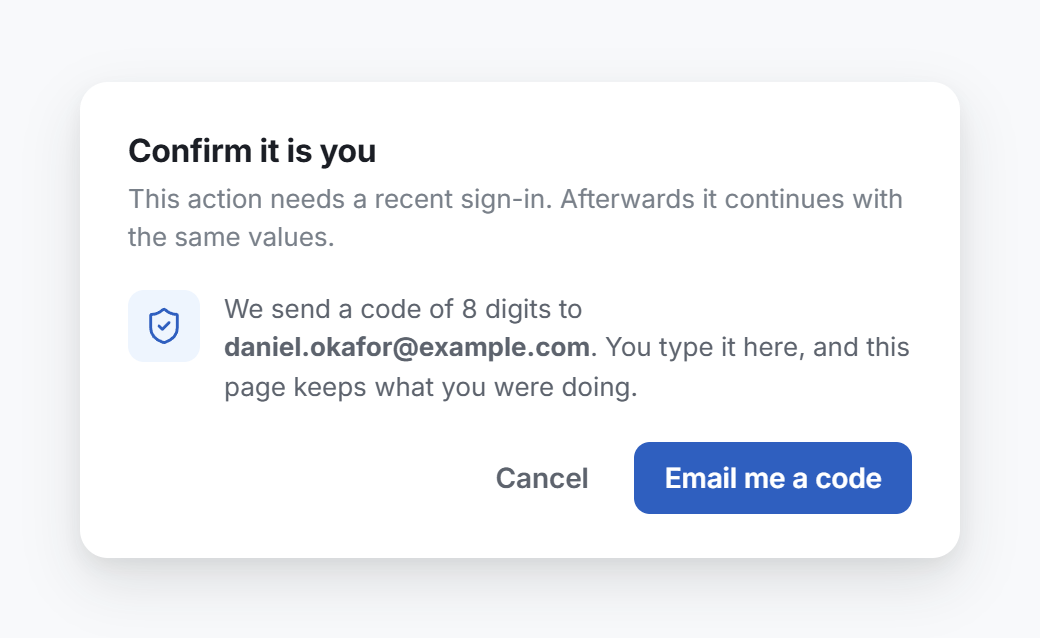
- Select Email me a code. Conta Finance sends a code of 8 digits to the email address of your account.
- In Code from the email, type the 8 digits. You stay in the same window, and the action continues after the last digit.
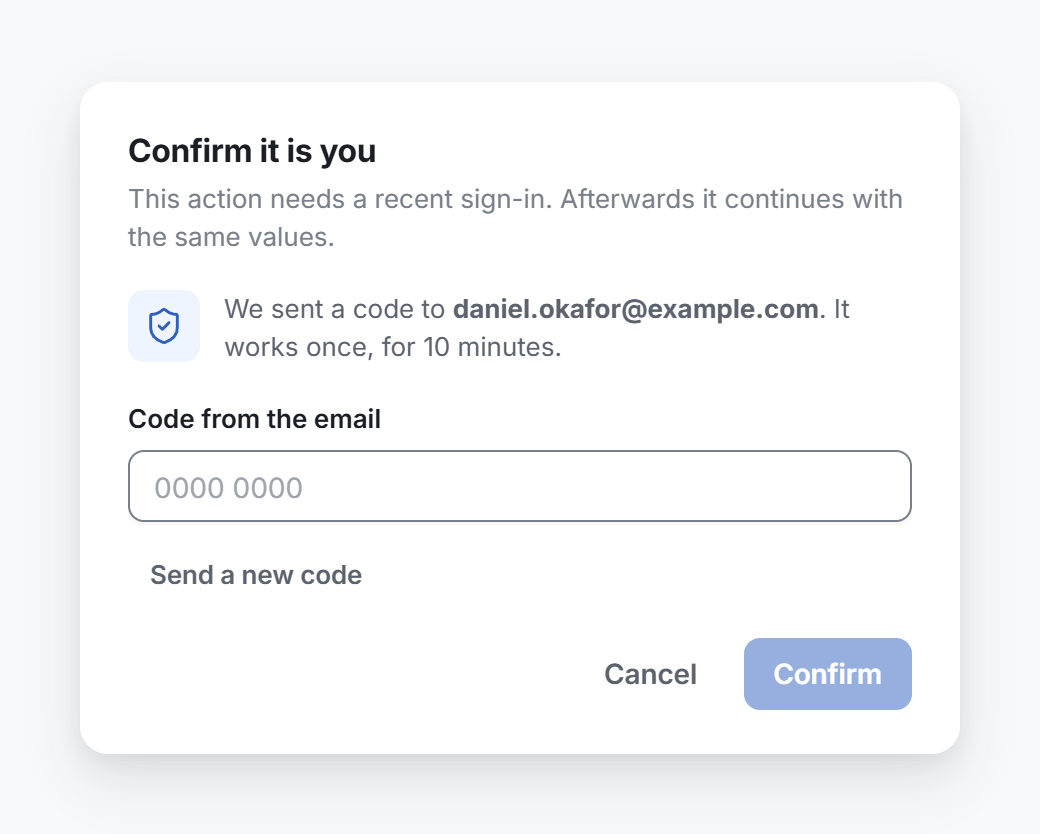
The code works once, for 10 minutes, in the session that asked for it. To get another one, select Send a new code.
With Microsoft or Google
- Select Continue with Microsoft or Continue with Google.
- Sign in again in the small window that opens. Use the same account as before.
When the small window closes, the action continues. The page keeps what you were doing.
If your browser blocks the window, a message says so. Allow pop-ups for accounts.conta.finance, then try again.
Microsoft or Google must tell Conta Finance when you signed in. If it does not, it cannot confirm it is you, and the small window says so. To confirm another way:
- Select Close this window. In the Confirm it is you window, select Cancel.
- Select your picture at the top right, then Sign out.
- Sign in again with a code by email: on the sign-in page, select Email me a code.
- Start the action again. If the Confirm it is you window opens, confirm with a code by email, as With a code by email says.
After you confirm
The action you started runs again by itself, with the same values. You do not fill anything in again.
Your proof stays fresh for 5 minutes. Another action of the list in that time does not ask again.
If you cancel
Select Cancel. A message says that you did not confirm it was you, and nothing changed.