Hand over an organization to a client
Transfer the ownership of an organization to your client, who becomes its owner in a new team, while your team keeps Read and edit access.
Where to find it:accounts.conta.financeTeamOrganizations⋮Transfer ownership
An accounting firm often sets up an organizationOne company with its own books, its own data and its own address. before its client uses it. When the client must own it, transfer the ownership. The client becomes the owner of the organization, in a new teamA group of people who work on a set of organizations together, such as a finance team or an accounting firm. of their own. Your team keeps Read and edit access.
If the client only needs access, do not transfer anything. Invite the client's team and give it access. See Work with another team.
Before you start
- You must be the owner of the team that owns the organization. An admin cannot transfer or offer the ownership.
- Use the email address the client will sign in with. It cannot be your own address.
- The transfer needs a recent sign-in. Conta Finance can ask you to confirm it is you. See Confirm it is you.
Send the invitation
- On the page of your team, open the Organizations tab.
- Open the menu (⋮) of the organization and select Transfer ownership.
- In Email of the new owner, type the email address of the client.
- In Name of the new owner's team, keep the name of the organization or type another one. The new owner can rename it later.
- Select Send invitation.
- If the Confirm it is you window opens, confirm it. The invitation then leaves by itself.
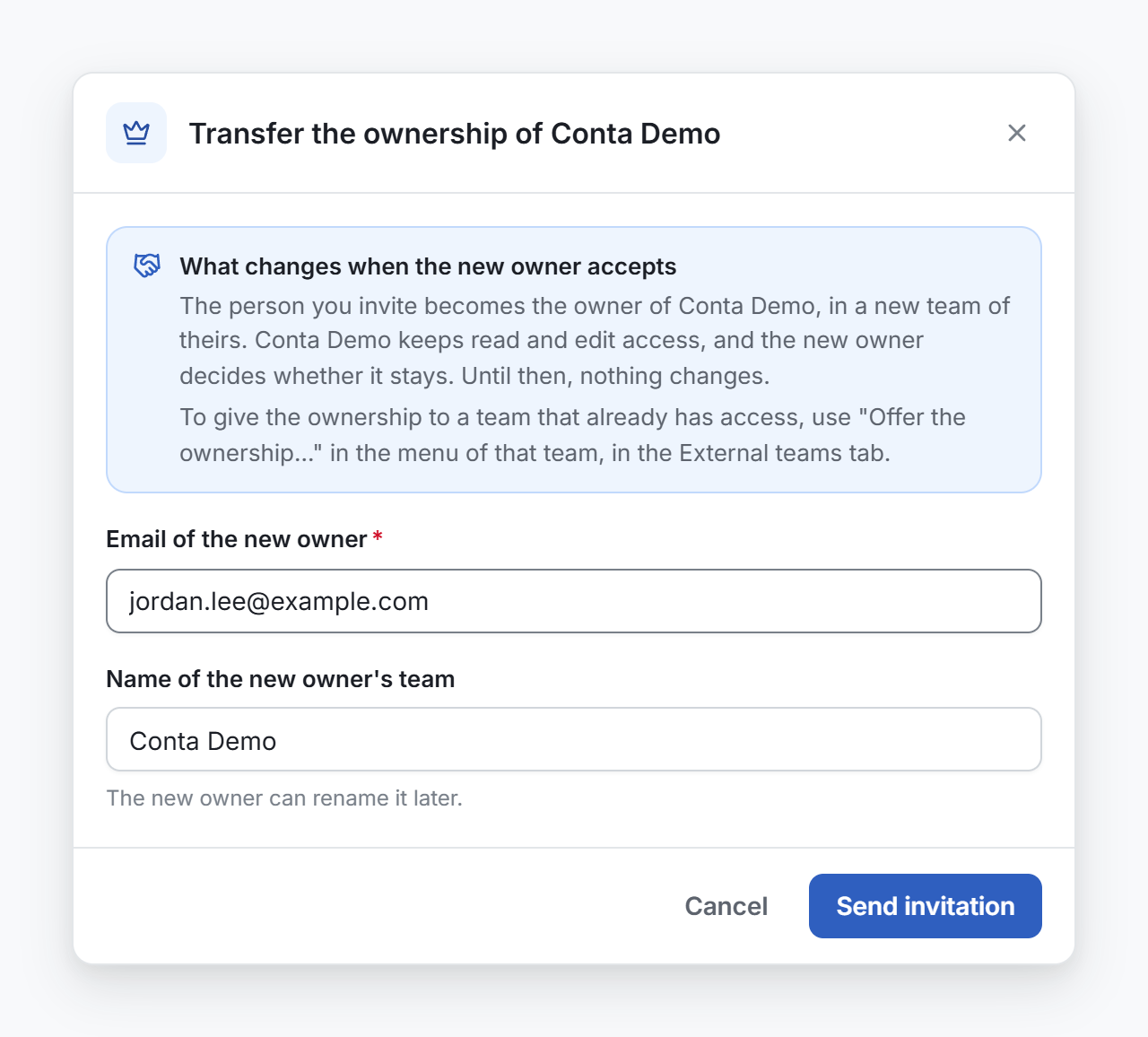
Nothing changes until the client accepts. Your team keeps working in the organization meanwhile.
The invitation shows in Pending invitations in the Users tab, as Client with the name of the organization it takes over. It expires after 7 days. Use Resend to send a new link, or Revoke to cancel it.
What the client sees
The email opens a page titled with the action, for example "Take over Acme". It shows:
| Field | What it shows |
|---|---|
| For | The invited email address. |
| Organization | The organization the client takes over. |
| You become | The owner, in a new team. |
| Invited by | The person who sent it, and their team. |
| Valid until | The day and time the invitation stops working. |
- The client signs in with the invited email address: with Microsoft, with Google, or with Email me a code.
- The client selects the button that names the action, for example Take over Acme.
The page of the new team then opens. If the client is signed in with another email address, the page asks them to sign out first.
What changes when the client accepts
| Before | After | |
|---|---|---|
| Who owns the organization | Your team | The new team of the client |
| Owner of that team | The client | |
| Access of your team | Full access for the owner and the admins | Read and edit |
| Who decides which teams have access | Your team | The new team of the client |
The two teams are now linked. The client can keep your access, lower it, or remove it, in the External teams tab of their team. The client can also invite their own people. See Invite a user.
The address of the organization does not change.
When the team of the client already has access
If the client already works in Conta Finance with a team of their own, and that team has access to the organization, offer them the ownership instead of an invitation.
- In your team, open the External teams tab.
- Open the menu (⋮) of the team of the client and select Offer the ownership.
- If that team has access to more than one of your organizations, choose the Organization.
- Read what changes, and select Offer the ownership.
The owner or an admin of that team accepts or declines the offer in their pending items. Until then nothing changes, and the row of the team shows which organization you offered and when. To cancel it, select Withdraw the offer of … in the same menu. An organization has one open offer at a time.
When they accept, the same changes as in the table above apply: their team owns the organization, and your team keeps Read and edit access.