Work with another team
Link your team with another team, such as the firm that keeps your books, and decide which of your organizations it can open.
Where to find it:accounts.conta.financeTeamExternal teams
Two teamsA group of people who work on a set of organizations together, such as a finance team or an accounting firm. work together through a link. One team sends one invitation, and the owner or an admin of the other team accepts it. After that, each team gives the other access to the organizations it owns, at any time, with no new invitation.
Before you start
- You must be the owner or an admin of your team. Only they see the External teams tab.
- You give access only to organizations your team owns.
- Another team gets Read and edit or Read only, never Full access.
To invite a person of your own team instead, see Invite a user.
Invite a team
- On the page of your team, open the External teams tab.
- Select Invite a team.
- In Team contact email, type the email address of the owner or an admin of the other team.
- For each organization, select what the link Starts with: Read and edit, Read only or No access. The default is No access.
- Select Send invitation.
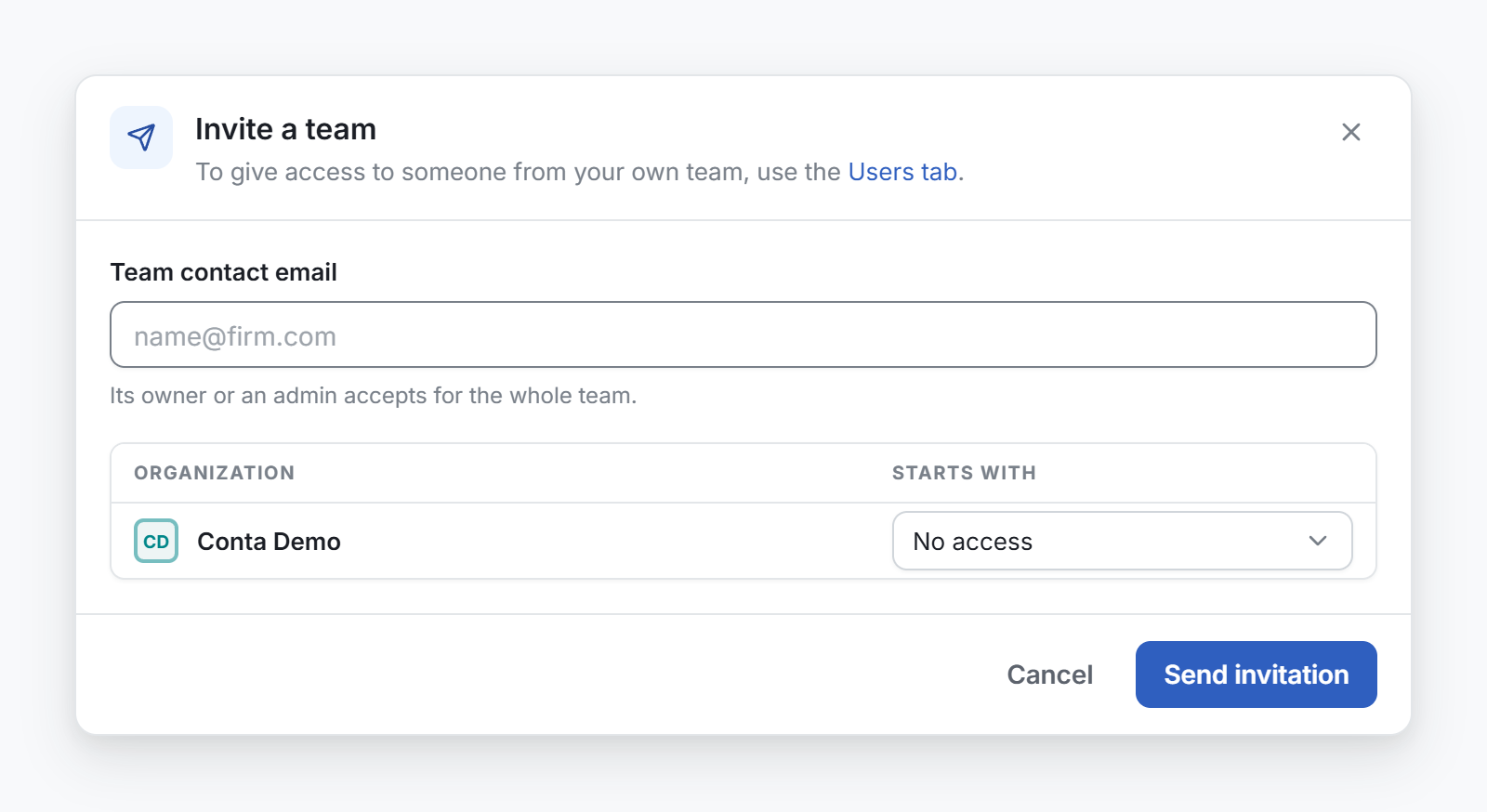
One email goes to that address, whatever the number of organizations. The message on screen is the same for every address, so it does not tell you which team the address belongs to.
The invitation shows in Pending invitations, under the list of teams, until a team accepts it. To cancel it, open its menu and select Withdraw invitation.
Accept an invitation from another team
The owner and the admins of the invited team see the invitation at the top of the page of their team, in Waiting for you. It reads "… invites your team to work together", and it lists the access the link starts with.
- If you are in more than one team, select the team that works with them.
- Select Accept.
The External teams tab opens, with the new team in the list. To refuse, select Decline. The other team is not told.
Give or change the access of a linked team
- In the External teams tab, open the menu of the team.
- Select Edit access.
- Under Your organizations, select Read and edit, Read only or No access for each organization. The Now column shows the level today.
- Select Save access.
The change applies at once, with no invitation. If it lowers an access, the Lower access? window lists each organization first. Select Lower access to apply it. The other team sees the change within 5 minutes.
Under Shared with your team, the same window lists the organizations the other team shares with yours, read only. Only the team that owns an organization changes its access.
A new organization of your team starts with no access for the teams you work with.
View access
A team marked Not linked reaches one of your organizations through an organization a third team owns. Its menu shows View access instead of Edit access: you can read its access but not change it.
Leave an organization another team owns
- Open the Organizations tab.
- Open the menu of the organization and select Leave organization.
- Select Leave organization again to confirm.
Everyone in your team loses access to it within 5 minutes. The two teams stay linked, and only the owner team can give the access back.
Unlink a team
- In the External teams tab, open the menu of the team.
- Select Unlink team.
- Read what each team loses, then select Unlink.
The two teams stop working together. Every access between them ends within 5 minutes, in both directions. Either team can unlink. To work together again, one team sends a new invitation.